
Hadleigh Theme Documentation
Current Version: 1.5
Introduction
Thank you for purchasing the Hadleigh theme! Please note that this documentation covers all the main settings for the theme, but it does not cover instructions about working with WordPress, as this is a very extensive topic. If you are new to WordPress, it is best to first get familiar with the WordPress system, so you can have at least basic knowledge about how it works and then proceed with installing the theme.
Still Have Questions? Contact me at [email protected]. I will do my very best to reply as promptly as possible.
Frequently Asked Questions
If you are looking for a quick reference guide, please check out the theme FAQ page. It answers the most commonly asked questions customers have when setting up the theme. If you have a specific question, please check the FAQ page first as you may find the answer! I hope it is a helpful guide :)
Installation
Download the Files
Your purchase includes the open_to_begin_hadleigh zip file, which contains all of the files that come with your purchase. Please open this zip file to move forward with setting up your website. The zip file package contains the following folders:
Theme Tutorial - Visit the /theme-tutorial folder, and click on the theme-tutorial.html file to view the theme tutorial in your web browser.
Additionally, click on the faq.html to review Frequently Asked Questions for the theme. This page is a quick reference guide for the most common questions asked when setting up the theme.
- Hadleigh Theme - The /hadleigh-theme folder includes zip files for the WordPress parent theme (hadleigh.zip) and the WordPress child theme (hadleigh-child.zip). When you are installing the theme, make sure you use the hadleigh.zip file.
- Theme Demo Files - The /demo-files folder includes all of the theme XML files. If you are required to manually import the demo files, all of the theme files can be accessed here. As explained in the Demo Import section below, there are three kinds of demo content included with your purchase: Elementor pages, Blog pages, and WooCommerce products.
Install and Activate the Theme
In the WordPress Dashboard, navigate to the Appearance > Themes page. Select Add New at the top of the page. Select Upload Theme at the top of the page. Press the Choose File button and browse to select the hadleigh.zip file. Press the After uploading the theme, you must activate it. Navigate to the Appearance > Themes page to activate the theme. If receive this error during installation -- one of the reasons is that you may have uploaded the incorrect file. Please ensure you are installing the hadleigh.zip file in the WordPress Dashboard.Common Error: Theme is missing the style.css stylesheet
Theme Plugins
As described in detail below, there are six recommended plugins packaged with the theme. After activating the theme, you will be prompted to install these plugins. It is recommended that you install and activate all plugins to use the full functionality of the theme.
To install the plugins, click Begin installing plugins -- Install and activate all plugins before continuing. Alternatively, go to Appearance > Install Plugins to install and activate all of the recommended/required plugins for the theme.

The Plugins
- Elementor Page Builder - This plugin is required if you want to create any of the 8 Page Templates in the theme demo. Visit the Elementor section below to learn more about using the Elementor Page Builder plugin.
- Vafpress Post Formats UI - This plugin allows you to create the Gallery, Video, and Audio posts seen in the theme demo under the "Posts" menu item.
- WPZOOM Social Feed Widget - This plugin is required if you want to use Instagram in your Sidebar or Footer. Refer to the Sidebar and Footer sections below for assistance with these items.
- One Click Demo Import - This plugin allows you to easily import all theme demo files with a simple click! Refer to the Demo Import section below for assistance with importing the theme demo content.
- Contact Form 7 - This plugin is required if you want to use the Contact Form on the theme demo Contact page. Refer to the Contact Form section below for more details on setting up your contact form.
- MailChimp For WordPress - The theme includes styling for the MailChimp subscription form featured throughout the theme demo. Refer to the Subscribe Form section below to configure the subscription form on your site.
Hadleigh Fonts
The script font shown in the theme demo is The Styled Edit font. While it is the recommended script font for this theme, it must be purchased separately. Due to copyright license, premium fonts cannot be redistributed with any WordPress theme.
The theme settings allow you to 1) Upload the recommended script font file (the Styled Edit) OR 2) Upload your own font file to use an alternate font instead. The section below details how to upload a single font file to your website and use the WordPress Customizer to configure the accent font to your preferences.
Watch the Video
Upload Font File
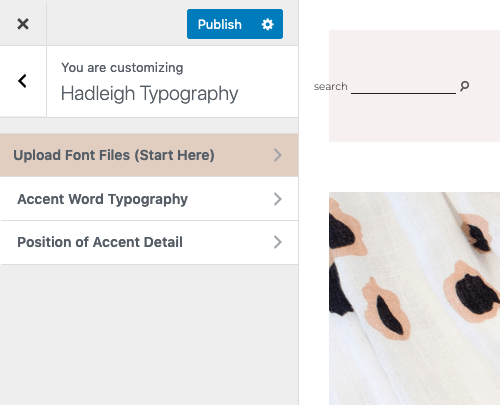
To begin, navigate to Appearance > Customize and click on the Hadleigh Typography section. To upload your font file, click on the Upload Font Files (Start Here) section.

Using the Customizer options, click the "Select File" button to select a font file from your Media Library. Next, use the "Select File Type" dropdown menu to select the type of your font file.
The theme is compatible with all four types of font files: WOFF, WOFF2, TTF, and OTF. If your custom font provides multiple file types, I recommend using the WOFF or WOFF2 file. However, if your font only provides one of these file types (i.e. TTF), that is perfectly fine. Modern browsers are compatible with each of these files.
Finally, use the "Add Font Name" textbox to give your font a unique name. If you are using the recommended theme font, please refer to the recommended settings below.
The Styled Edit Font
To integerate the recommended theme font file with the theme, please make sure you call it the The Styled Edit in the "Add Font Name" textbox. The image below shows the exact settings used in the theme demo. After you are finished making any changes in the WordPress Customizer, please click the blue "Publish" button to save all changes.

The Font Options
Whether you are using the recommended theme script font or a custom font, the theme gives you several options to configure the font styles to your preferences. Within the Hadleigh Typography section of the Customizer, click on Accent Word Typography section to configure this page element to your preferences.
Within this section of the Customizer, there are eight elements listed. The guide at the bottom of this section details exactly where these elements are located within the theme.
Click on an element to expand the section, and customize the font family and font style. As shown in the screenshot, the "Site Title" section has been expanded to reveal the customization options.

For each font option, there are 6 customization options, including the following items:
- Font Size: The desktop font size is the size of the text for screen sizes of 1051px and greater.
- Font Size (Tablet): The tablet font size is the size of the text for screen sizes bewteen 651px and 1050px.
- Font Size (Mobile): The mobile font size is the size of the text for screen sizes 650px and below.
- Letter Spacing: The letter spacing property increases or decreases the space between the characters in the text.
- Line Height: The line height property specifices the height of a line of text.
- Text Transform: The text transform property determines the capitalization of the text. The available options are none, uppercase, lowercase, and capitalize (transforms the first letter of every word to uppercase).
Position of Accent Detail
The final theme settings allow you to change the height and position of the colored accent detail that appears below some of the theme text. Within the Hadleigh Typography section of the Customizer, click on Position of Accent Detail section to configure the colored accent details to your preferences.
Within this section of the Customizer, there are six elements listed. Click on an element to expand the section, and customize the height and position of a colored accent. As shown in the screenshot, the "Center Inline Site Title - Accent" has been exapanded to reveal the customization options.

For each option, there are 2 customization options, including the following items:
- Height of Accent: This controls the thickness of the accent detail.
- Bottom Position of Accent: This controls the position of the accent detail at the bottom of the accent word/phrase.
Hadleigh Theme Font Guide
The screenshots below detail how the various font options are applied to the theme accent words and phrases. The font guides are meant as a representative example. The guides provided below can be applied across all theme posts and pages. For example, all script font on all theme Elementor pages will fall under the "Elementor + Blog | Accent Title" font option.
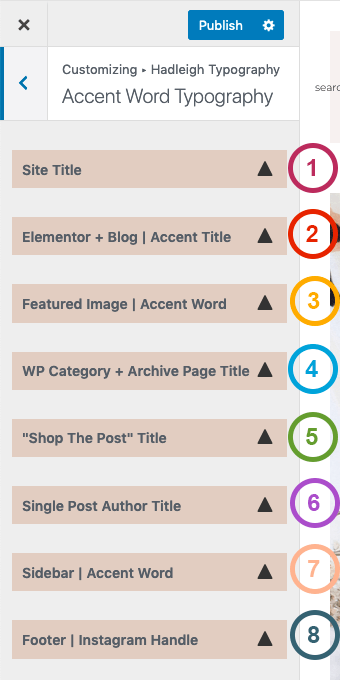
- Site Title / Elementor Accent Title - View Guide
- Site Title / Blog Accent Title / Featured Image Accent Word - View Guide
- WP Category + Archive Page Title - View Guide
- Blog Accent Title, Shop the Post title, Sidebar Accent Word - View Guide
- Single Post Author Title, Sidebar Accent Word - View Guide
- Footer Instagram Handle - View Guide
Demo Import
There are four types of demo content included with your purchase.
- WooCommerce - All products included in the demo Shop page.
- Elementor Pages - All pages listed under the "Elementor" navigation menu item in the theme demo. Each page template is included as a single XML file.
- Elementor Pages (No Global Colors) - If you set up your website with the Hadleigh theme prior to March 2022, it is recommended that you manually import the Elementor page files using Option #2 below.
- Blog Posts and Pages - All other content in the theme demo, including blog layouts, features, post galleries, and post types.
Import Option #1 - One Click Demo Import (Video)
Important Note: The One Click Demo Import plugin will work with most websites and hosting services, but not all. If needed, please skip to import Option #2 to manually upload the demo files instead. Please contact theme customer support if you have any questions about importing content!
Import Option #2 - WordPress Importer Plugin (Video)
Existing Customers before March 2022
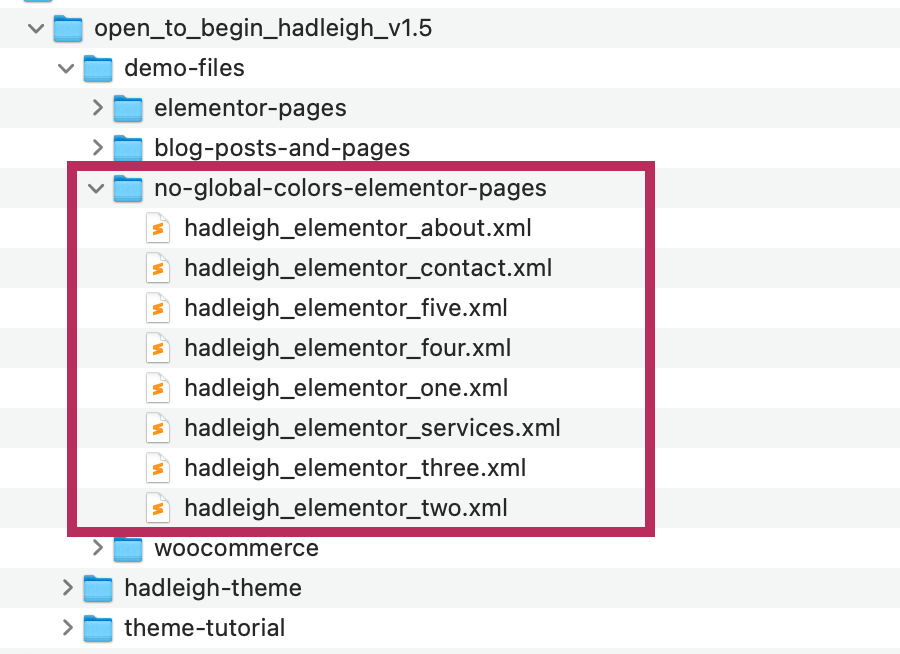
Important Note: If you set up your website with the Hadleigh theme prior to March 2022, you can access the original Elementor page files in the theme purchase file. As shown in the screenshot below, use the files located in the no-global-colors-elementor-pages folder with Option #2 (the WordPress Importer plugin).
With Option #1 (the One Click Demo Import plugin), the Elementor pages have been converted to support the Elementor Global Colors function. To use these files, you need to import the global Elementor kit as described below. Otherwise, if you use Option #1 instead, your pages will import without a color palette.
Before Import
The list below shows the plugins used in the demo. Before importing the file, download and activate your preferred plugins:
- Instagram: WPZOOM Social Feed Widget
- Custom Page Templates: Elementor Page Builder
- Subscribe Form: MailChimp for WordPress
- eCommerce Shop: WooCommerce
- Contact Form: Contact Form 7
Upload Script Font File
The script font shown in the theme demo is The Styled Edit font. While it is the recommended script font for this theme, it must be purchased separately. Due to copyright license, premium fonts cannot be redistributed with any WordPress theme.
The theme settings allow you to 1) Upload the recommended script font file (the Styled Edit) OR 2) Upload your own font file to use an alternate font instead. Before importing any of the demo content, I recommended following the steps in the Hadleigh Fonts section of the tutorial to upload your selected font file to the Customizer.
Disable Default Fonts + Colors
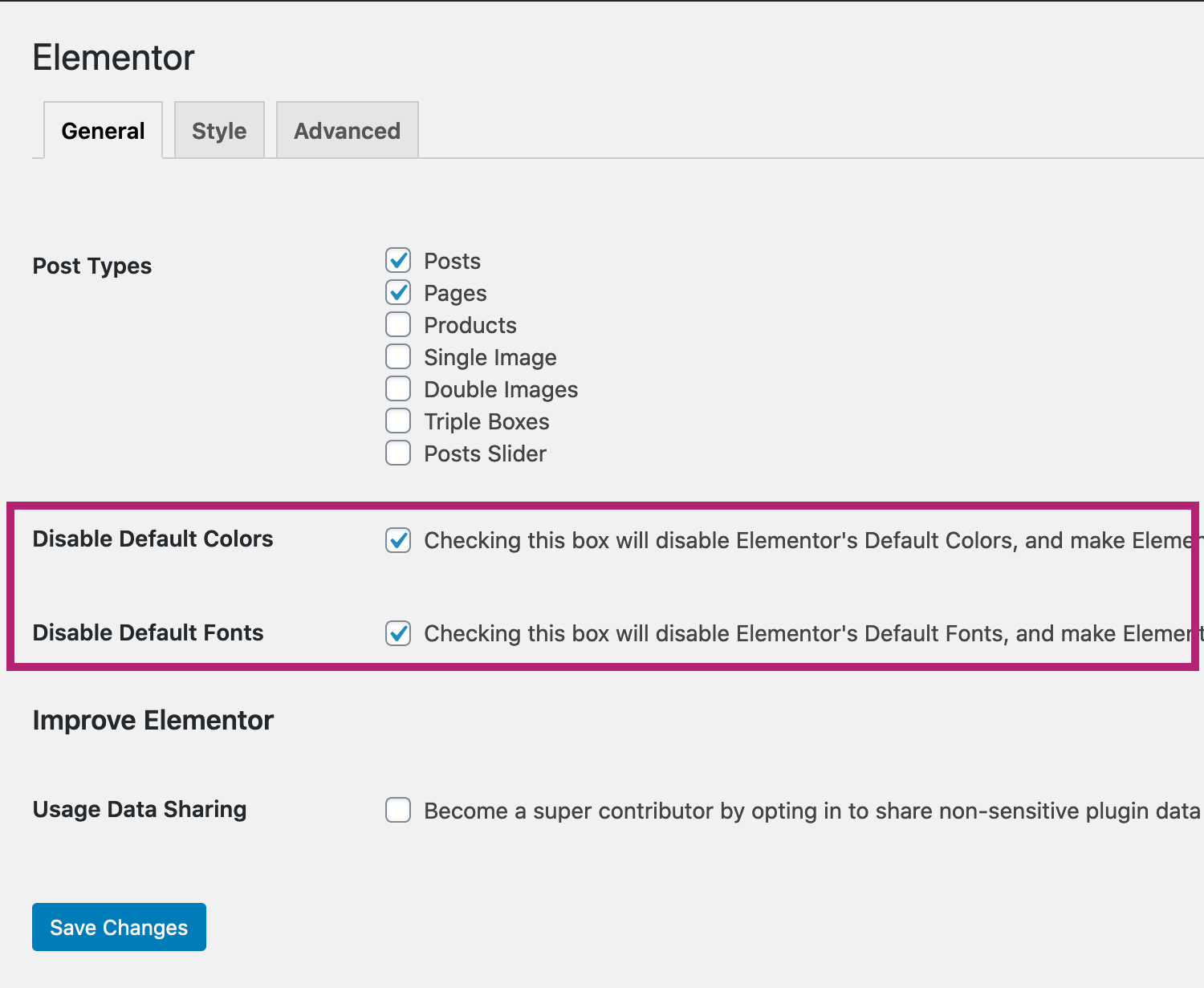
To disable the default Elementor fonts and colors, from the WordPress Dashboard, navigate to Elementor > Settings. As shown in the screenshot below, check the box for the following two plugin options:
- Checking this box will disable Elementor's Default Colors, and make Elementor inherit the colors from your theme.
- Checking this box will disable Elementor's Default Fonts, and make Elementor inherit the fonts from your theme.
Enable Optimized DOM Output (Elementor 3.0+)
New to Elementor version 3.0+, the plugin significantly reduced the source code loaded on each page. With less code, Elementor improves page speed and your pages load faster.
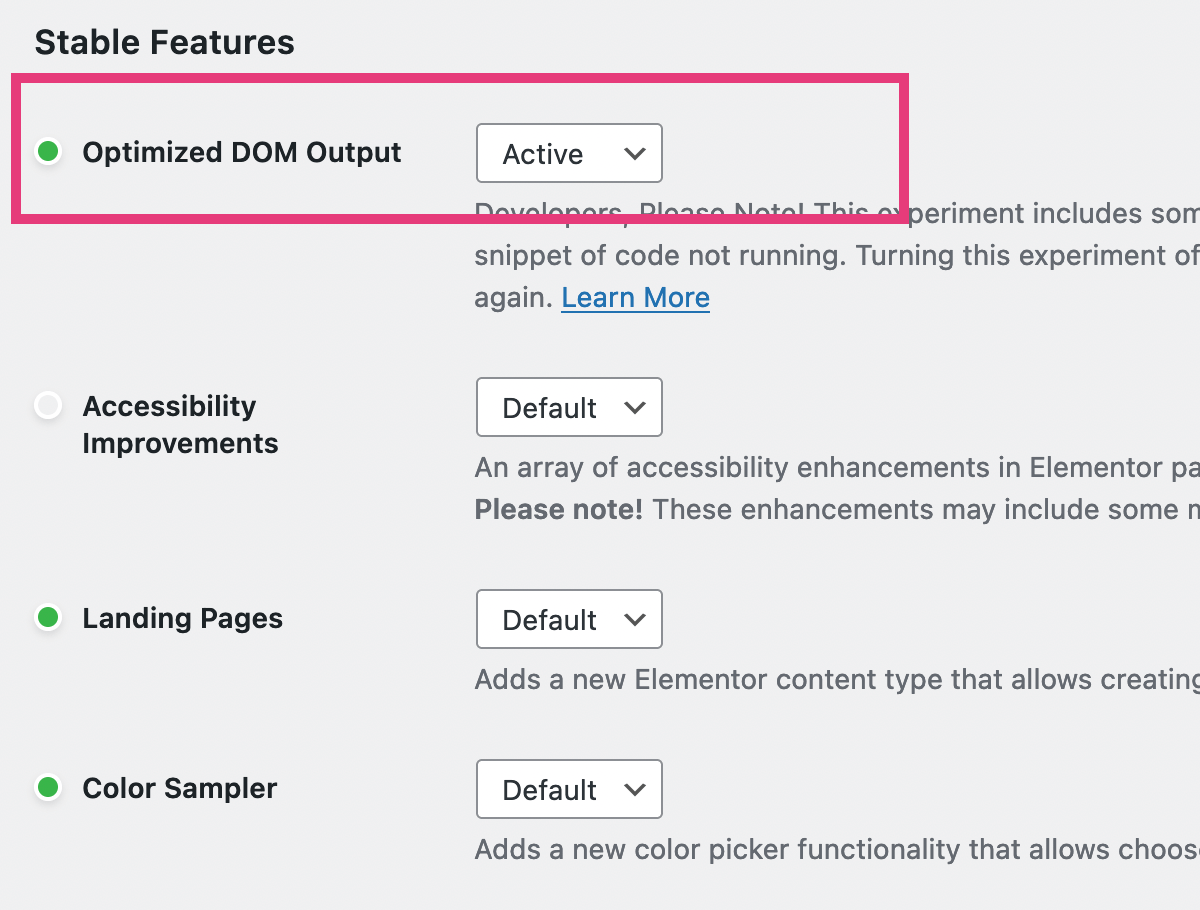
Within Elementor > Settings, click on the Experiments tab. Scroll down to the Stable Features section. As shown in the screenshot below, for the Optimized DOM Output option, please set it to Active.
Import the Global Elementor Kit
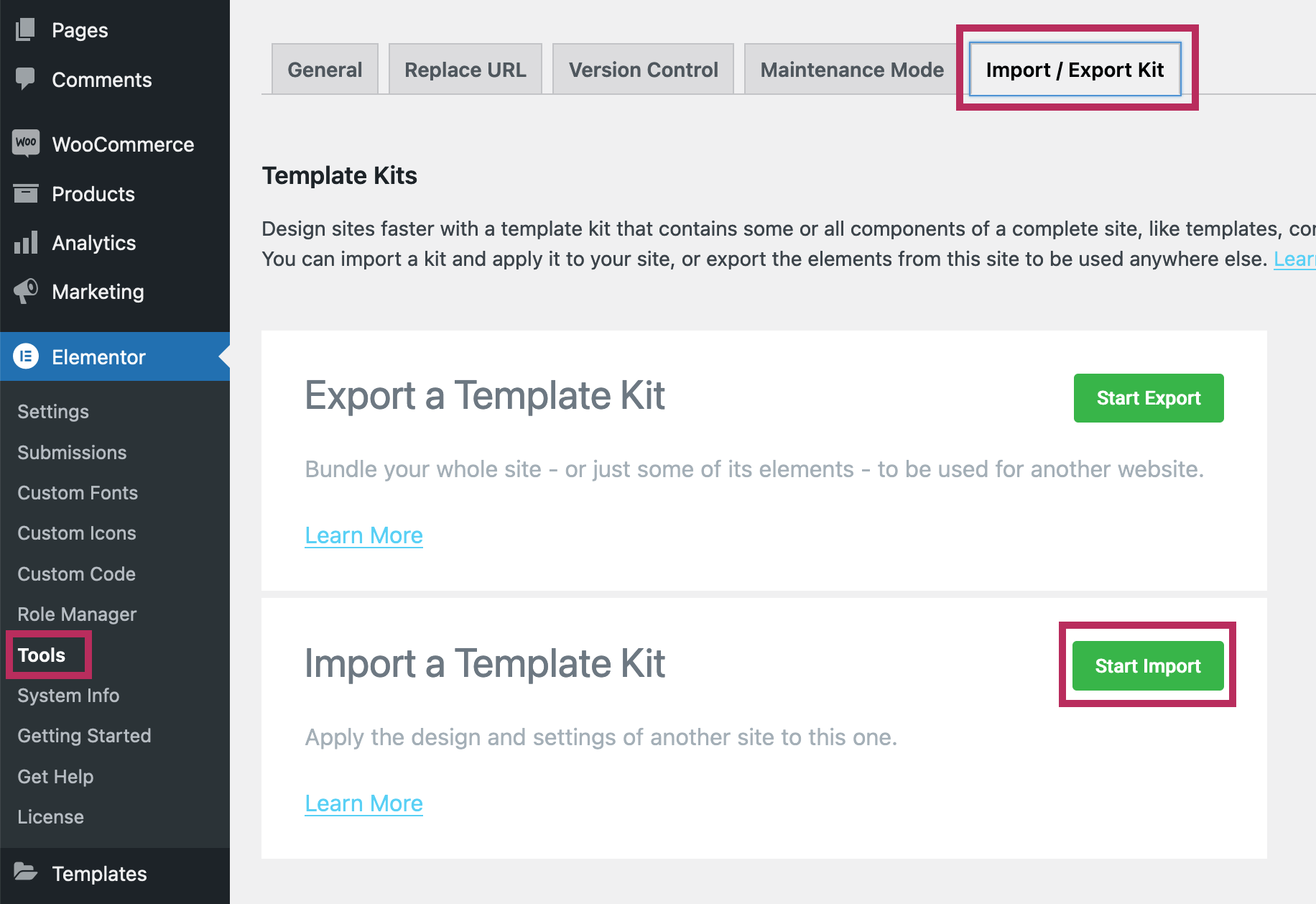
To upload the global Elementor settings for the theme, navigate to Elementor > Tools and click on the Import / Export tab. Click on the Start Import button to continue with the import.
Note: If you have wordpress.com as your hosting service, you may run into issues with importing the Elementor Global kit. As of Elementor 3.7+, this bug still exists. If this happens to you, please contact support and I will help you with the bug fix!
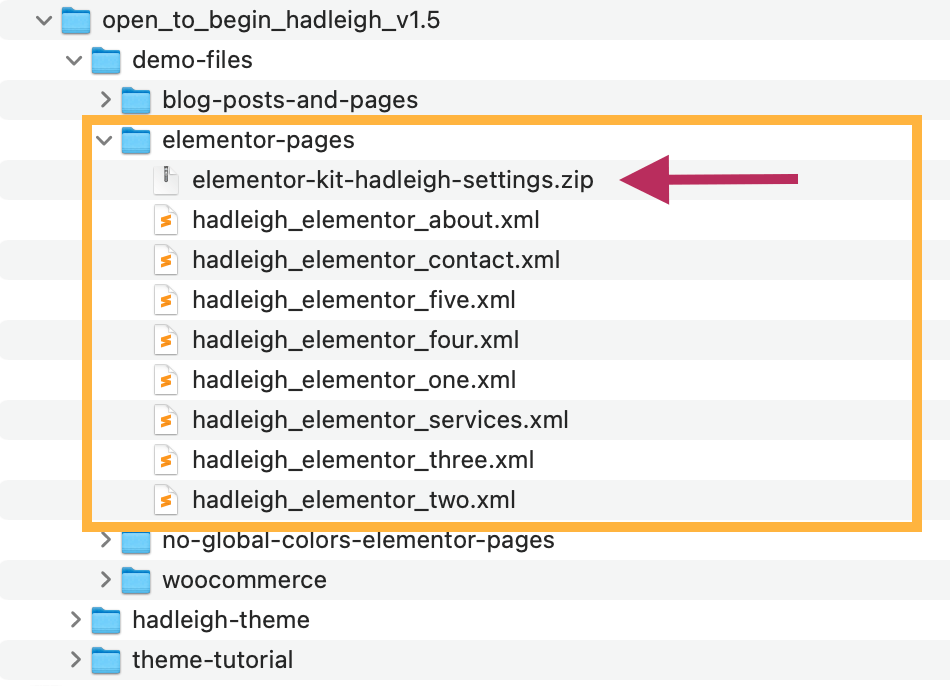
As shown in the screenshot below, the Elementor kit zip file is included with the theme purchase file. Please navigate to the /demo-files folder and then the /elementor-pages folder.
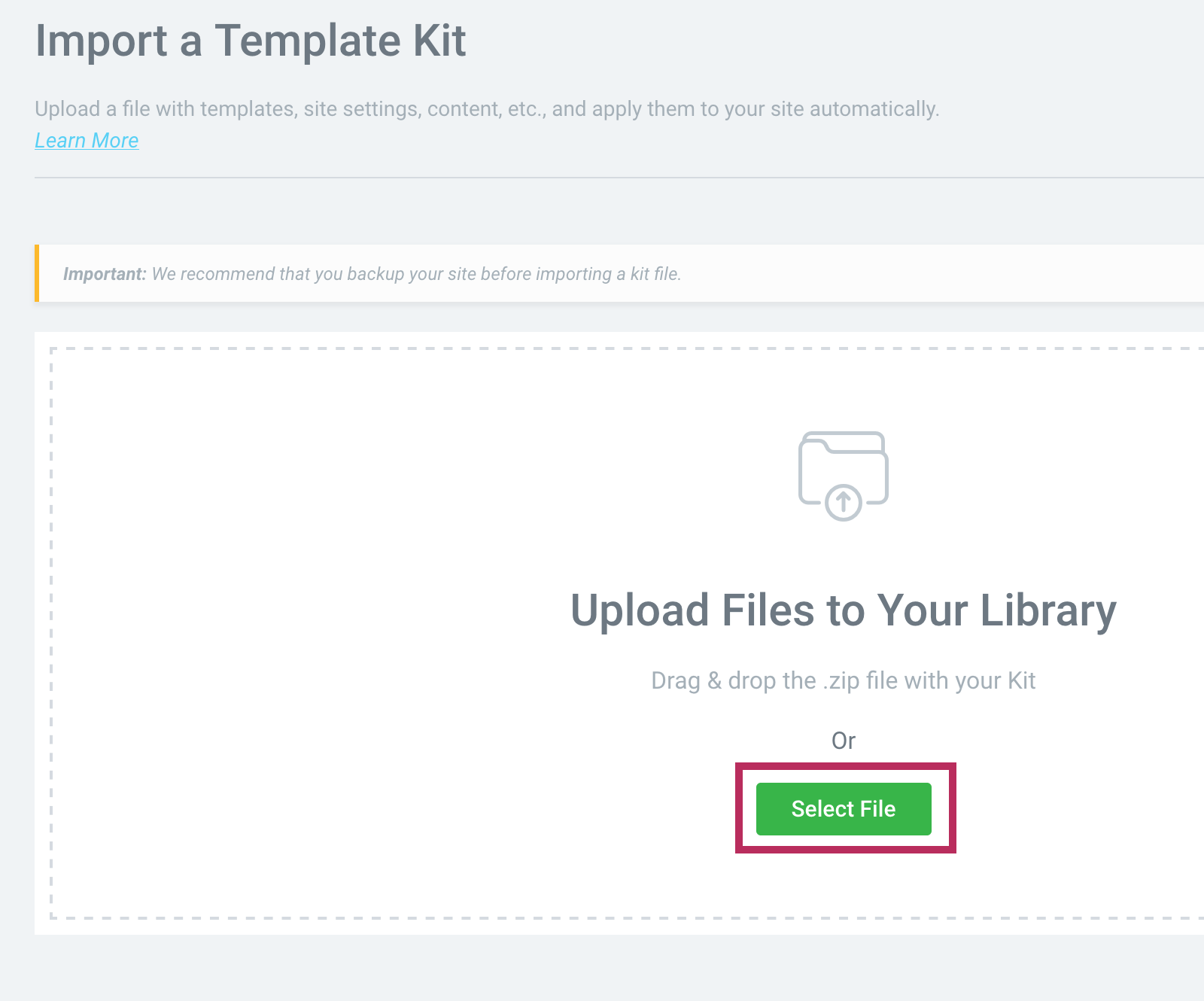
On the Import a Template Kit screen, select the elementor-kit-hadleigh-settings.zip file from the theme purchase file downloaded to your computer.
On the next screen, it will show you that you are uploading a kit of global Elementor settings to your website. Click the green Next button to finalize the import of these global settings.

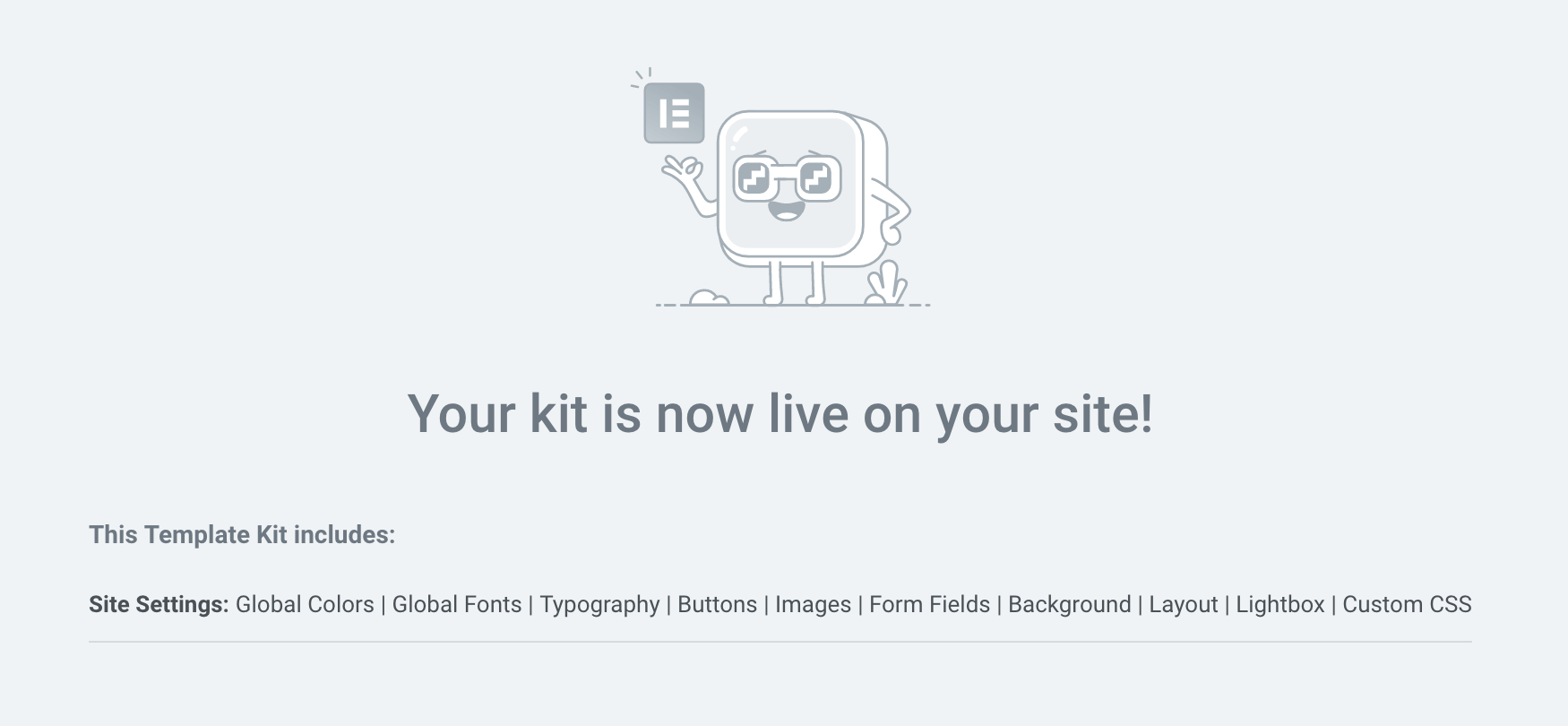
On the final screen, you will see a success message that the Elementor kit has been successfully added to your site.
Option #1 - Import File with One Click
The theme uses the One Click Demo Import plugin as the default method to import all demo content onto your website. Before moving forward, please ensure you have installed and activiated the plugin.
Important Note: The One Click Demo Import plugin will work with most websites and hosting services, but not all. If needed, please skip to import Option #2 to manually upload the demo files instead. Please contact theme customer support if you have any questions about importing content!
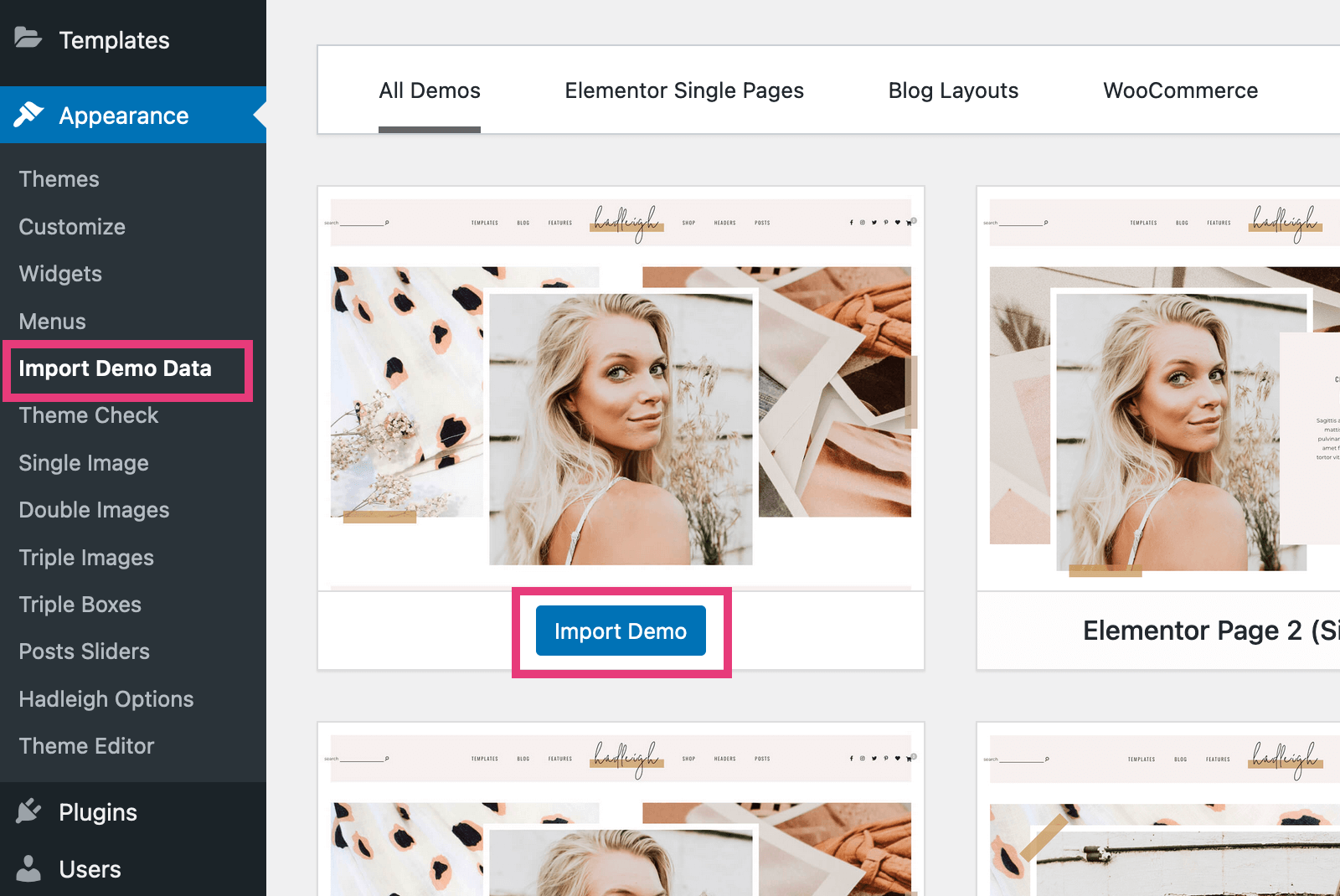
Navigate to the Appearance > Import Demo Data page. From the list of thumbnails provided, click the blue Import Demo button to import the file onto your website.
Option #2 - Manually Import Files
To manually import the demo files, the recommended plugin is the WordPress Importer plugin. From the WordPress Dashboard, navigate to Tools > Import.
As shown in the screenshot below, if this your first time using the WordPress Importer plugin, click the Install Now link listed under WordPress in the listed tools.

After the plugin has finished installing, click the Run Importer link to begin importing the theme demo content.

On the next screen, click the Browse button to select the preferred demo XML file from your local computer. All of the theme demo XML files are included in the main zip file, within the /demo-files folder. Please refer to the Installation section of this tutorial for a full explanation of all files included with your purchase.

After selecting the file, click the blue Upload file and import button.
WP Importer - Item Already Exists
After the file has finished importing, you will see a message from the plugin that says "All Done. Have Fun!"
You may also see notifications like the screenshot below that certain items already exist on your site. WordPress will only import the same asset (such as an image file) one time. It will not import duplicates of the same item. If you have already imported other demo files, you may see this notification. You can ignore these messages, your file was sucessfully imported.

WP Importer - Failed to Import Media
Depending on your website configuration or hosting service, your website may not allow the demo images to be imported. If so, you will see the nofications as shown in the screenshot below - failed to import media.
In this case, everything about the import process worked -- you just did not get a copy of the demo image files in your Media Library. All of the Elementor pages and demo content can still be used in exactly the same way. The demo images are meant as placeholders, and are supposed to be replaced with your actual content.
Additionally, please reach out to customer support, and I am happy to provide any desired image files to you.

After Import
- Menu: Navigate to the Appearance > Menus page. If this is your first time setting up the Hadleigh theme, refer to the Theme Menu section for additional assistance with setting up and editing the theme menus.
- Subscribe Form: If you are using the subscribe form, navigate to MC4WP > Form. Click Save Changes to complete the import of the subscribe form.
- Home Page: Set up your home page and refer to the Home Page section below. To modify the theme settings, change the the social media settings and add a fixed menu, refer to the Theme Options section below.
- Sidebar + Footer: Refer to the Sidebar and Footer sections below for assistance with these items.
Contact Form 7: Configuration Error
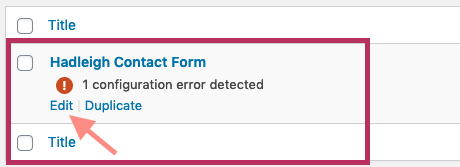
After importing the Contact Form from the theme demo, you will note there is a configuration error listed for the contact form as shown below. To fix the configuration error, you need to add your email address to the contact form settings. Below the configuration error message, click on "Edit" to update the form settings.
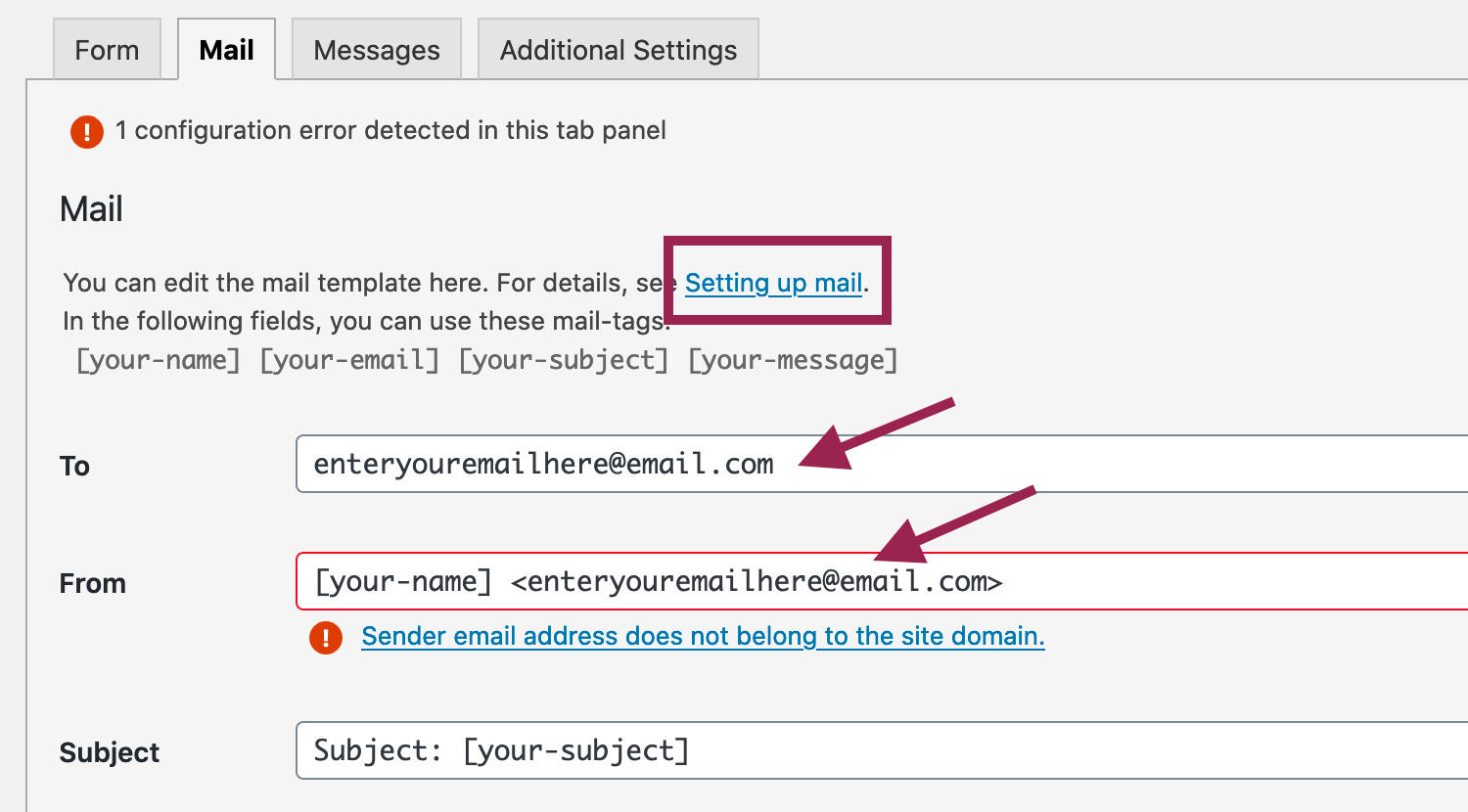
Once you are editing the contact form, click on the "Mail" tab at the top of the form. Within the Mail tab, replace the default email address with your own email address. Click on "Setting Up Mail" for additional help with configuring the Contact Form 7 plugin.
Global Colors
The video below provides an overview of Elementor Global Colors, and how you can use them to easily change the default colors. If you are planning to change the theme colors, please spend a few minutes watching this video. There's a good chance it will save you a lot of time!
Watch the Video
Elementor Page Templates
The Hadleigh Theme includes eight page templates to build custom pages with the Elementor Plugin. For detailed instructions on using the drag and drop page builder, refer to the plugin home page here. Please note: You do not need the pro version, you can create all of the pages with the free Elementor plugin. The videos below provide detailed instructions for setting up each template.
Creating Pages with Elementor
When you are creating pages with the Elementor Page Builder and the Hadleigh theme, it is best to use the "Hadleigh + Elementor" page template. As shown in the image below, select the "Hadleigh + Elementor" option from the Template dropdown menu. This page template is specifically designed to work with the Elementor plugin, and will create the best results.

Common Error: Sorry, the content error was not found on your page.
If receive this error message, you are trying to edit a page template that is not comptabile with the Elementor Page Builder plugin. If you are trying to edit a WordPress blog page, please exit to the regular WordPress editor and follow the instructions in the Blog Layouts section to edit blog pages.
Otherwise, if you are editing a theme Elementor page, please update your Template to the Hadleigh + Elementor page template. If you have any questions, please do not hesitate to contact support for additional assistance.
Disable Default Fonts + Colors
To disable the default Elementor fonts and colors, from the WordPress Dashboard, navigate to Elementor > Settings. As shown in the screenshot below, check the box for the following two plugin options:
- Checking this box will disable Elementor's Default Colors, and make Elementor inherit the colors from your theme.
- Checking this box will disable Elementor's Default Fonts, and make Elementor inherit the fonts from your theme.
Enable Optimized DOM Output (Elementor 3.0+)
New to Elementor version 3.0+, the plugin significantly reduced the source code loaded on each page. With less code, Elementor improves pages speed and your pages load faster. The theme is now compatible with the optimized Elementor output setting.
Within Elementor > Settings, click on the Experiments tab. Scroll down to the Stable Features section. As shown in the screenshot below, for the Optimized DOM Output option, please set it to Active.
Use the Uploaded Script Font in Elementor
After following the instructions in the Hadleigh Fonts section of the tutorial to upload your single font file, the font will be added automatically to the Elementor Typography settings. The font can be used when creating any Elementor post or page on your site.
To use the custom font, scroll all the way to the bottom of the Family dropdown menu in the "Typography" options. As shown in the screenshot below, you will find the custom font listed under the subheading Hadleigh Custom Fonts.

Video Tutorials
Before watching the videos, refer to the Demo Import section above to add the custom page templates to your site.
#1 Elementor Page One / Common Elementor sections
The first two videos show you to edit Elementor Page One and sections that are common across all theme Elementor pages. Even if you are not using Elementor Page One on your site, it is still good to watch these two videos to see how common Elementor sections are edited.
#2 Elementor Page Two
#3 Elementor Page Three
#4 Elementor Page Four
#5 Elementor Page Five
#6 Elementor About Page
#7 Elementor Services Page
#8 Elementor Contact Page
Theme Menus
The Hadleigh Theme supports two locations for a custom WordPress menu - the Primary Menu and the Footer Menu.
For advanced help in setting up a menu for your WordPress website, refer to the WordPress Menu User Guide for step-by-step instructions.
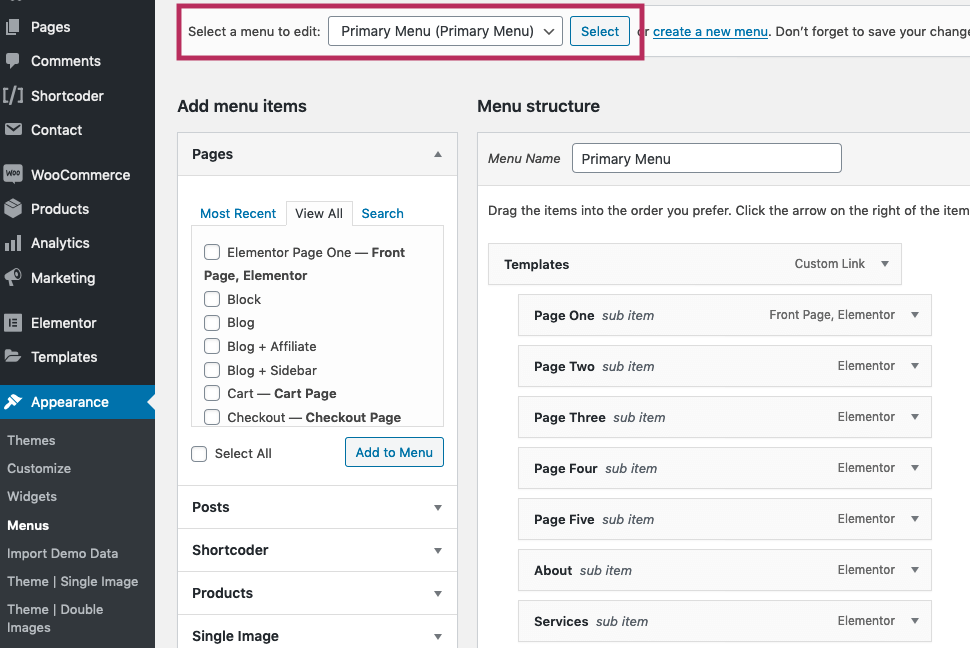
As there are two menus available with the theme, you must use the Select a menu to edit dropdown field to switch between the two menu administration pages. For example, from the dropdown menu, choose Primary Menu and click the Select button to edit the Primary (header) menu.
Primary Menu
If this is your first time setting up the the theme, click on the 'create a new menu' link. Give your menu a name and press the Create Menu button.
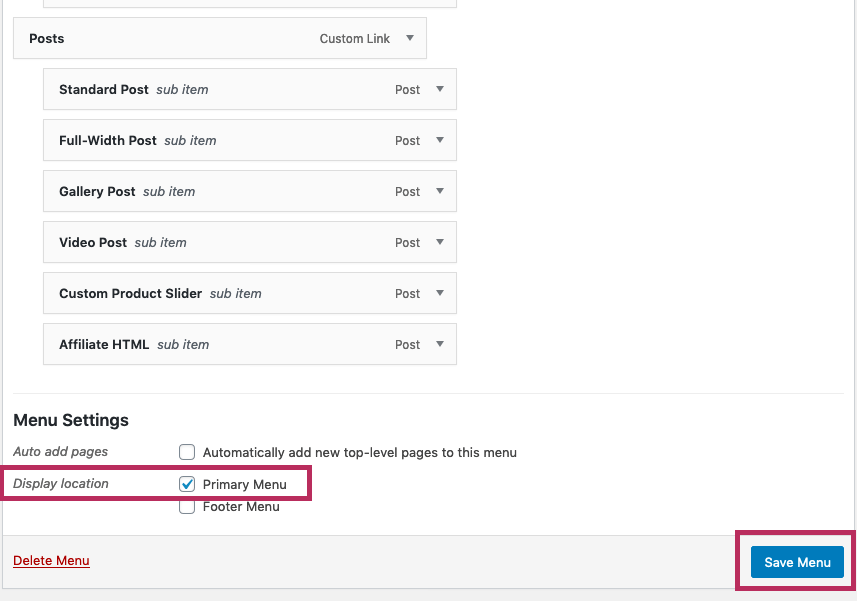
Using the drag and drop WordPress functionality, populate your menu as desired. After configuring the Primary Menu, under Menu Settings, check the Primary Menu checkbox as the Display Location and select the Save Menu button.
Footer Menu
Similar to the Primary Menu, use the Select a menu to edit dropdown field to select Footer Menu to edit the footer menu. If you are setting up the Footer Menu for the first time, click the 'create a new menu' link. Give your menu a name and press the Create Menu button.
Using the drag and drop WordPress functionality, populate your menu as desired. After configuring the Footer Menu, under Menu Settings, check the Footer Menu checkbox as the Display Location and select the Save Menu button. Please note, the Footer Menu will only display top-level menu items -- it will not display any dropdown menus due to its location on the web page.

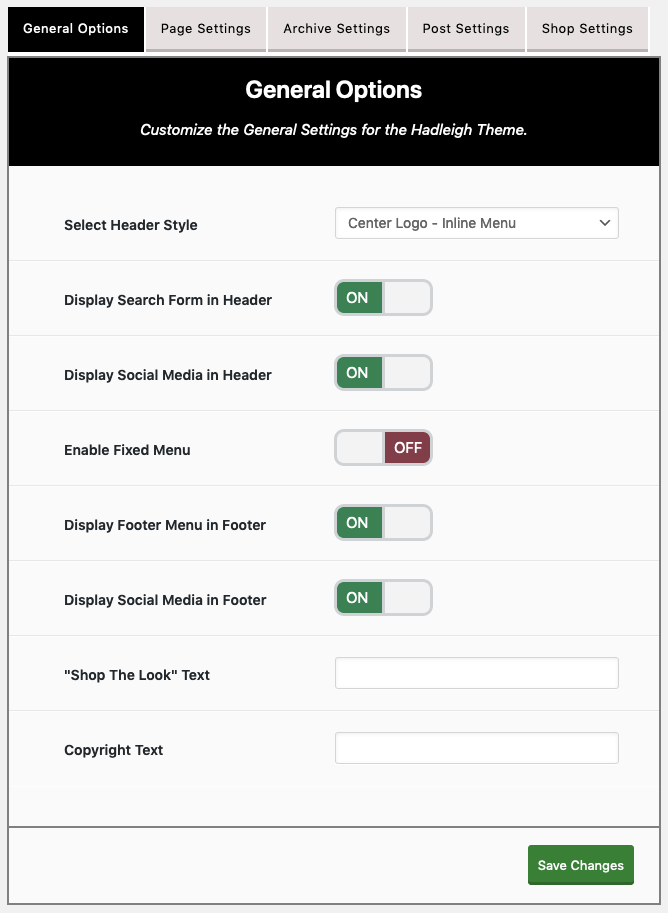
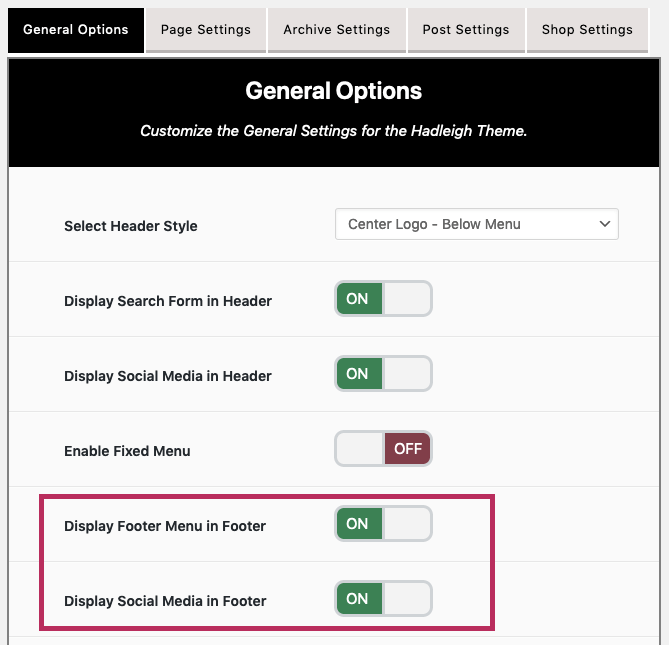
To display the Footer Menu on your website, navigate to Appearance > Hadleigh Options to update the theme options menu. Visit the "General Options" tab, and enable the Display Footer Menu in Footer option.

Theme Options
The Hadleigh Theme is packed with options to enable you to customize your site to exactly your preferences. To change the theme options, navigate to Appearance > Hadleigh Options.
A summary description of each of the tabs in the Options Menu:
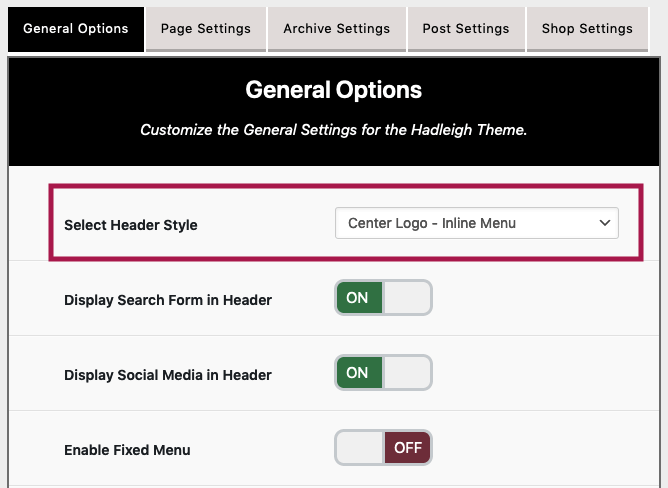
General Options: Choose the following settings for your site: Header Style, Enable Fixed Menu, Enable Search Form and Social Media in the header, and Enable the Footer Menu and Social Media in the footer. Additionally, you can change the Copyright Text and the "Shop the Look" text that appear on your site.
Page Settings: Customize the settings of pages, including hiding the post categories, post date, comment count, and social media share buttons. Additionally, choose to show the full content of each post in the Blog Layout.
Archive Settings: Customize the layout of archive pages, which include the following pages: archive, categories, tags, author, and search results. You can display archive pages with any of the blog layouts, including Blog, Block, Grid, List, or Gallery.
Post Settings: Customize the settings for a single blog post, including enabling the sidebar for single posts. From this tab, you may select to show/hide a variety of post elements including the featured image, date, categories, tags, comment count, and many more.
Shop Settings: Customize theme options for the WooCommerce plugin. You may display a cart icon at the top of your website. You can modify the layout of the Shop page and Single Product pages by choosing to enable the WooCommerce Sidebar.
To add widgets to the WooCommerce Sidebar, navigate to Appearance > Widgets and drag and drop WooCommerce widgets from the Available Widgets into the WooCommerce Sidebar.
Additionally, you can customize the number of products that show on the Shop page, and hide the related products and change the gallery/zoom settings on a single Product page.
Upon making any changes within the Options Menu, please ensure you press the "Save Changes" button to save all changes. A confirmation message will notify you that the changes were successfully saved.
Header Styles
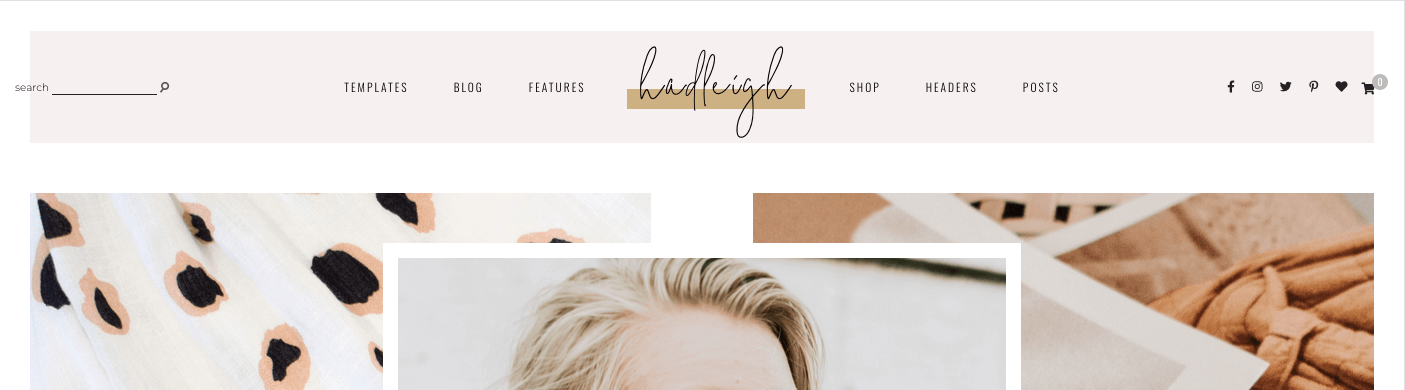
The Hadleigh Theme has two different header styles to display the theme menu, including:
Center Logo - Inline Menu
Center Logo - Below Menu
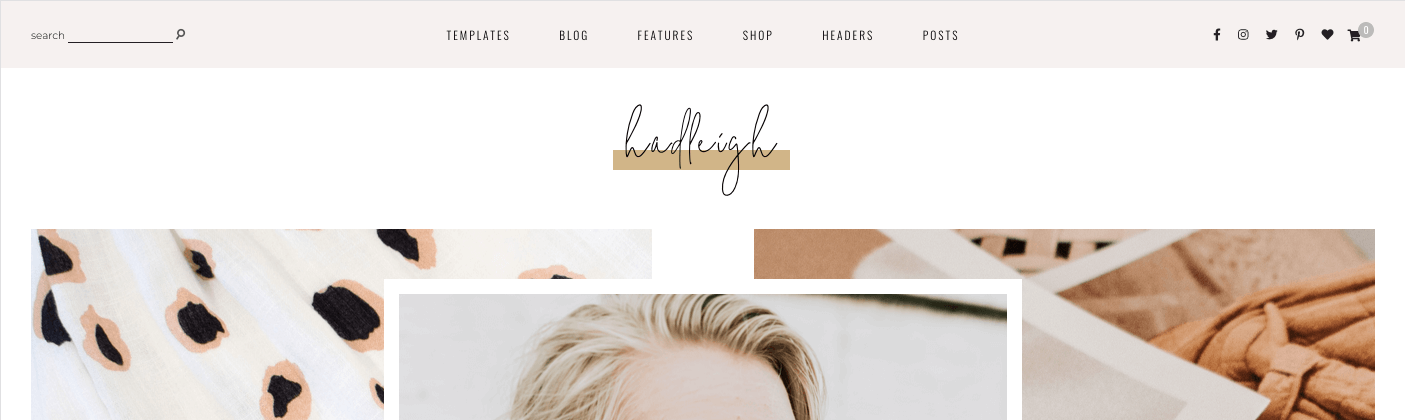
To change the header style on your site, go to Appearance > Hadleigh Options to update the theme options menu. Visit the "General Options" tab. Use the dropdown menu "Select Header Style" to choose the style for your website.
Custom Logo
Using the WordPress Customizer, you can display a custom logo with an image file selected from the Media Library. Additionally, you can configure the width of your logo at various screen resolutions.
Prepare the Logo File
Before finalizing your logo, here are a few key recommendations for the best results. You should use Photoshop or similar photo-editing software to crop and size your logo to prepare it for your website.
- The image file should be twice the size of your preferred logo width. For example, if you would like a logo that is 315px wide, your image file should be 630px wide.
- Using photo-editing software, remove all extra white space from the image file. Refer to screenshots below.
The theme displays the exact image that is uploaded to the WordPress Customizer. The theme does not edit/crop the file in anyway. If you use an image file like the example below, it will make your actual image appear much smaller with so much white space surrounding it.

Edited Image File
In contrast to the image above, the extra white space has been removed around the logo. Instead the image file has been edited and now contains just the logo itself.

Add the Logo
After preparing your image file, navigate to Appearance > Customize to add the custom logo to your website. Click on the Site Identity section and use the options to add and configure your image file.
Click on Select Image to select an image from the Media Library.
Use the options to set the Logo Width at the following screen resolutions:
- Desktop Width - Screen sizes greater than 1050px
- Tablet Width - Screen sizes between 1050px and 651px
- Mobile Width - Screen sizes 650px and below

Home Page
By default, the home page of your website will display the latest posts. You can customize the home page of your website by setting it to a static page. To change the home page of your website, follow the steps below:
- From the WordPress Dashboard, go to Settings > Reading.
- For the option “Your homepage displays,” select “A static page.”
- Select your newly created/edited page in the “Homepage” dropdown.
- Click “Save Changes” at the bottom of the page.

Blog Layouts
There are five different blog layouts that come with the theme: Blog, Block, Grid, List, and Gallery. You can create unlimited blog pages, and filter them by all categories or a single category.
To create a blog page, use the regular WordPress editor to add a new page (Pages > Add New). Follow the two steps below to create a theme blog page:
- On the right of the screen, use the Template dropdown menu to select your preferred blog layout, such as the Grid Layout.
- Below the page text editor, use the Hadleigh Page Settings to configure the options for the blog page, including showing a sidebar, adding a subscription form, etc. Please refer to the Pages section of the tutorial for a full description of all options.

Watch the Video
Category Pages
WordPress automatically generates an archive page for every blog category, like this category page from the theme demo.
To change the layout of WordPress category pages (and all WordPress archive pages), navgiate to Appearance > Hadleigh Options and click on the Archive Settings tab. As shown in the screenshot below, select from any of the theme blog layouts and update the applicable options for your selected layout, including showing or hiding a sidebar.
When you are finished, please ensure you click the Save Changes button to save all changes.

MailChimp
The default email marketing form included in the theme demo is a MailChimp form. As seen in the demo, the stylized MailChimp subscription form can be displayed within an Elementor Page or at the top of blog page. To create the stylized MailChimp subscribe form, follow the steps below:
Install the Plugin
Install and activate the MailChimp for WordPress plugin. Within the General Settings of the plugin, connect your MailChimp account to the plugin, using your MailChimp API Key.
Plugin Reference Page: MailChimp for WordPress
Create / Import the Form
To create the subscribe form, navigate to MC4WP > Form. The form will be imported by default with the theme demo content. If the code is already present within the plugin settings, simply click the blue Save Changes button to finish the import of the form.
If you still need the form code, copy the code below and paste it into "Form code" box to replace the default plugin code. Click Save Changes to update your subscribe form.
After finalizing the subscription form, use the "Settings" and "Messages" tabs to configure the MailChimp plugin to your preferences.
<div class="hadleigh-mc4wp-text"> <h6> Subscribe And Let's Be Friends Lorem Ipsum </h6> <span class="hadleigh-mc4wp-accent-word">the latest deets</span> <span class="hadleigh-mc4wp-intro-text">Sagittis aliquam malesuada bibendum arcu. Cras pulvinar mattis nu sed. Sodales ut etiam sit amet nisl. Ut faucibus pulvinar elementum integere est.</span> </div> <p> <input type="text" name="NAME" placeholder="First Name" required /> </p> <p> <input type="email" name="EMAIL" placeholder="Email Address" required /> </p> <p> <input type="submit" value="Subscribe" /> </p>code copied!
Add to Blog Pages
After creating a form, add the subscription form to a blog page via the Hadleigh Page Settings menu. Copy the form shortcode and paste it into the Enter Form Shortcode textbox in the page settings.

Add to Elementor Pages
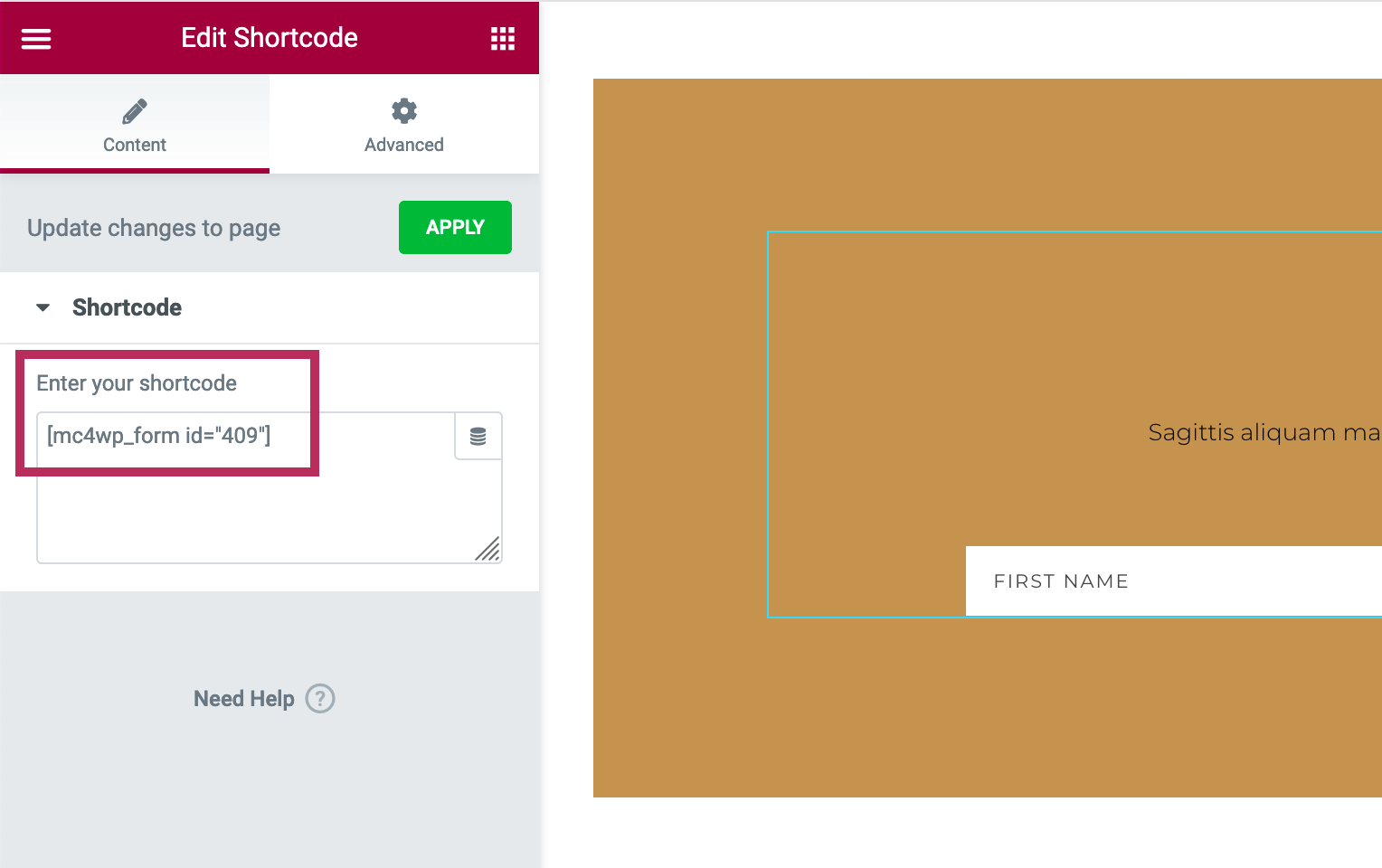
After creating a form, add the subscription form to an Elementor page using the Elementor shorcode widget. Ensure that the shortcode from the MailChimp for WordPress plugin is entered into the Elementor widget settings, as shown below.
Change the Colors
To change the colors of the MailChimp subscription form located in the WordPress blog pages and Elementor pages, go to Appearance > Customizer and click on "Hadleigh Colors." Use the Subscription Form Colors section to change the text colors and button colors in the forms.
ConvertKit
Although the default email marketing form included with the theme is a MailChimp form, you can easily switch to ConvertKit using the the steps below.
Install the Plugin
ConvertKit maintains an official WordPress plugin, called ConvertKit. Plugin Reference Page: ConvertKit Plugin.
Please download and activate the official plugin. Go to Settings > ConvertKit to connect the plugin to your ConvertKit account. For more instructionds on setting up the plugin, please refer to the Add Your API Key section of this ConvertKit help article.
Create the Form
Important Note: If you want the ConvertKit form to look exactly like the subscription form within the theme demo, follow the steps below when creating a form. You are welcome to use an alternate style or form type, these steps are for those customers who want the same exact style as the theme demo.
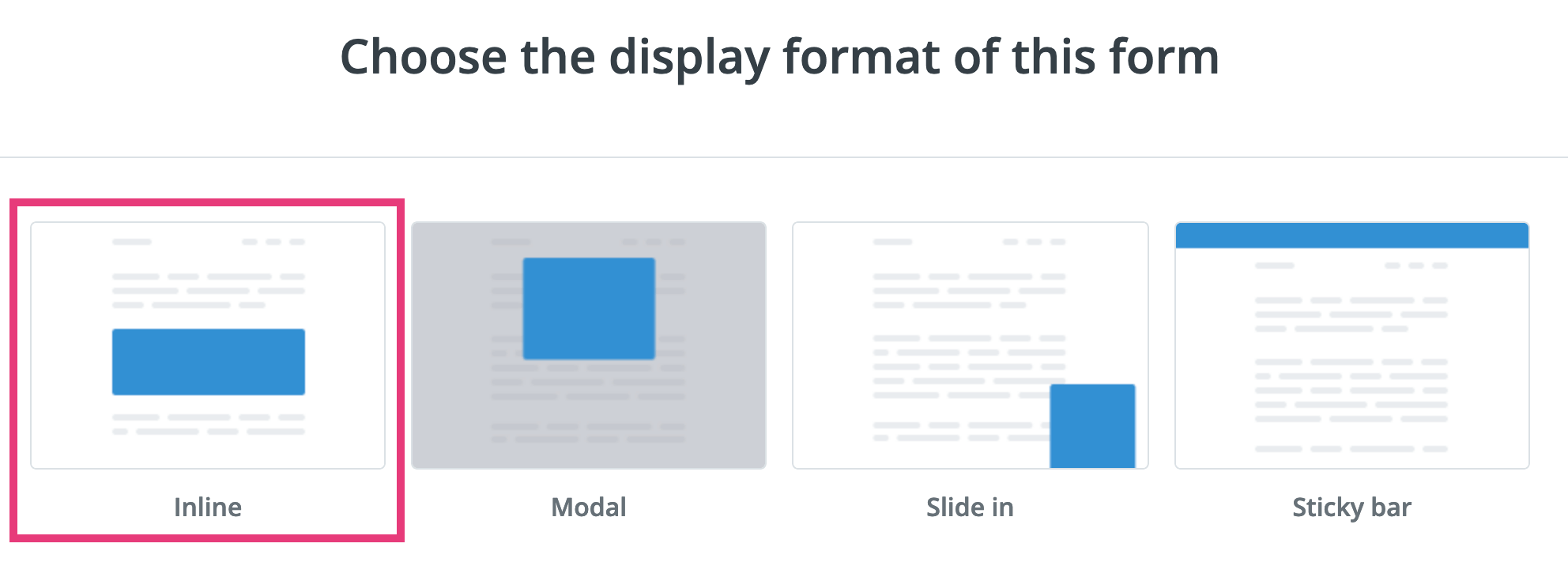
Within the "Landing Pages & Forms" section of your ConvertKit account, click the "Create New" button and then the "Form" button to create a new subscription form. When prompted to choose the display format, select "Inline" as shown in the screenshot below.
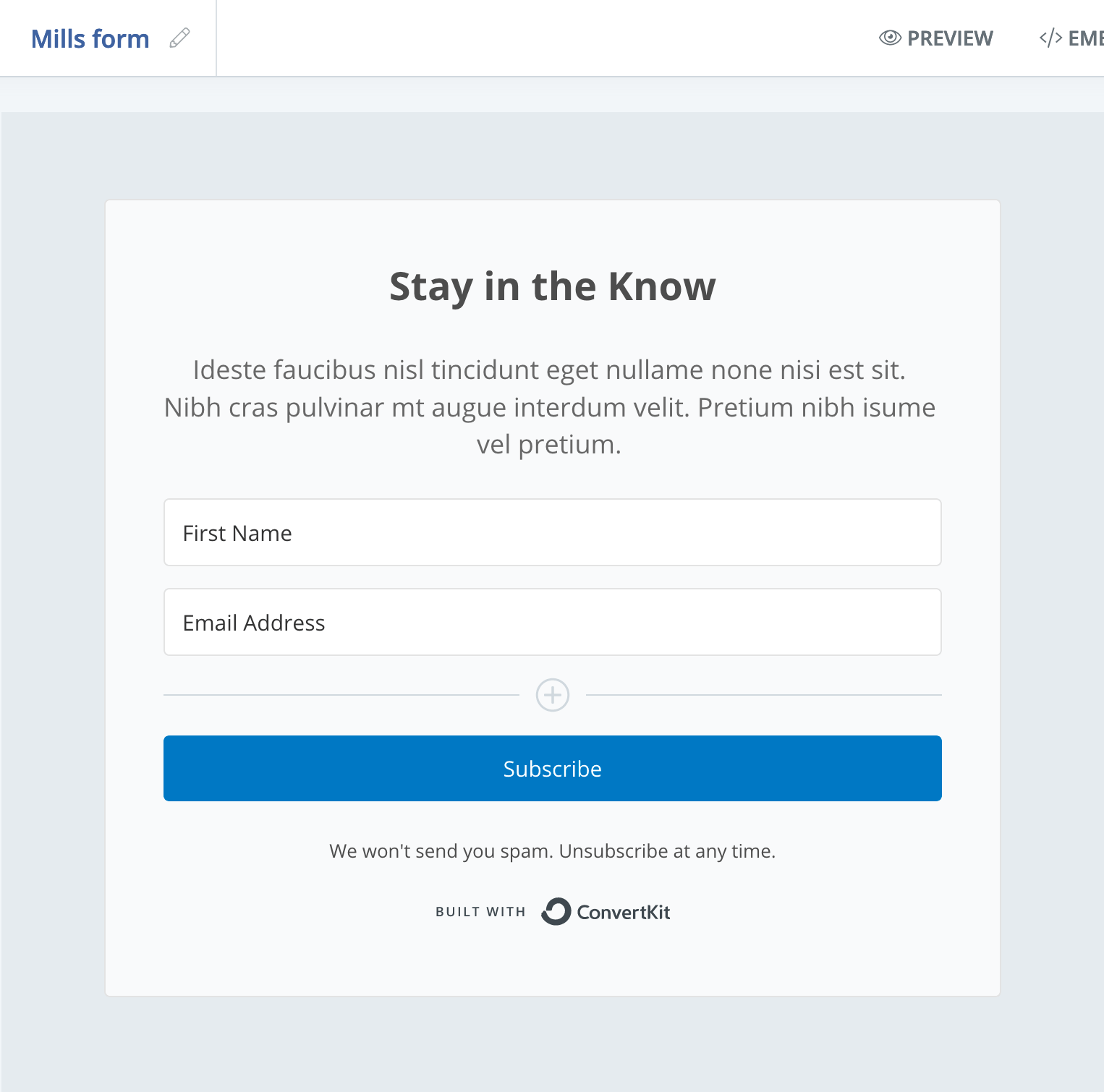
On the next screen, select Mills as the form template.

On the final screen, use the ConvertKit form builder to customize the Mills template to your preferences. First, you can select the "+" icon to add a name field to the form.

You can use the form builder to change the order of fields (first name then email address) and modify the text from the default form text to your own content. You do not need to modify the default styles of the form. All styling will come from the theme code. As shown in the screenshot below, the final form still has the default Mills template styles. After finalizing your form, click the "Save" button at the top of the screen.
Add to WordPress
After building your form, click on the Embed tab. A dialog box will appear on your screen. As shown in the screenshot below, click on "WordPress" to get the shortcode for your form.
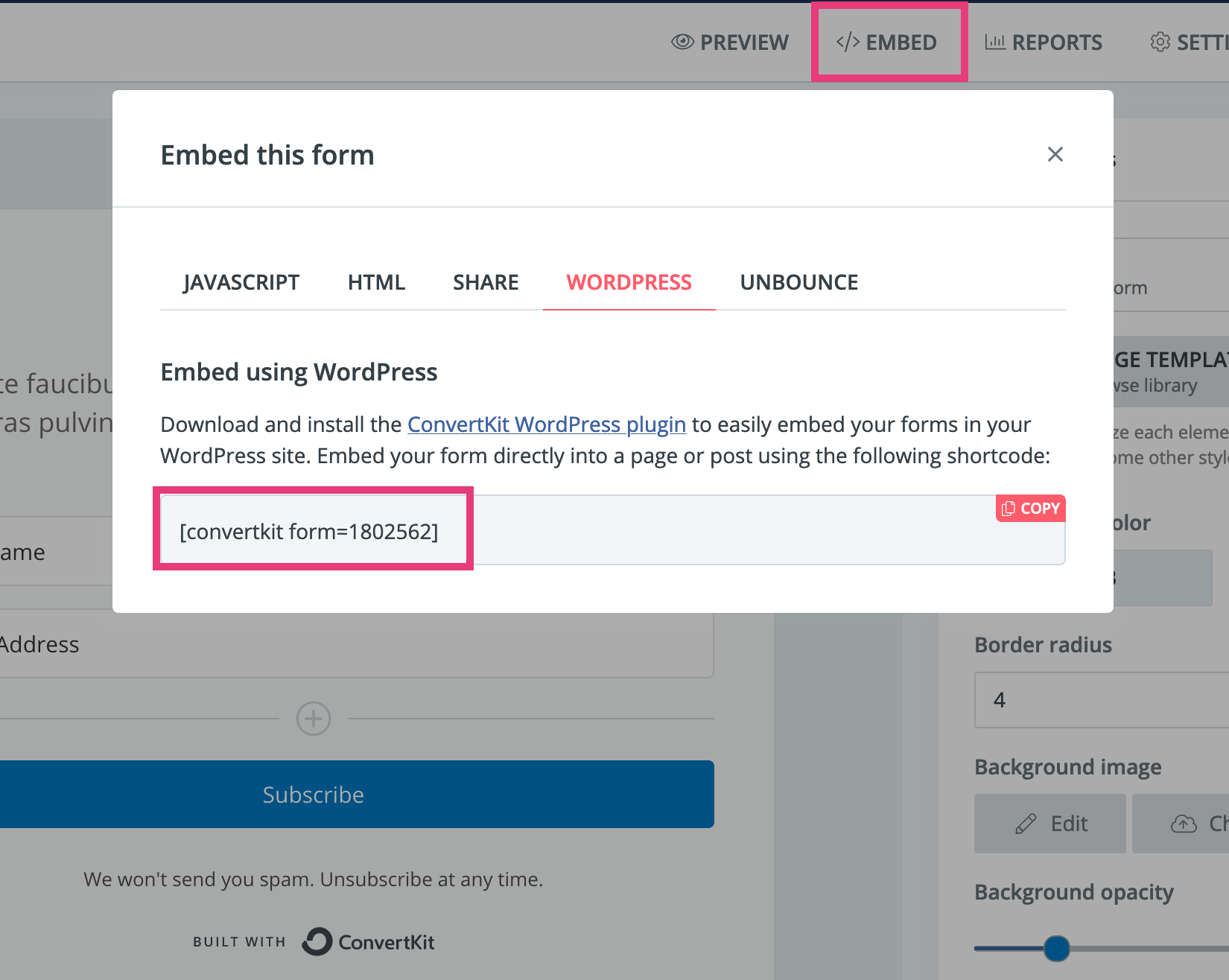
If you are creating a WordPress blog page, enter the ConvertKit shortcode into the "Enter Form Shortcode" field of the Hadleigh Page Settings.
If you are editing an Elementor page, enter the ConverKit shortcode into the Elementor shortcode widget settings. An example is shown in the screenshot below.
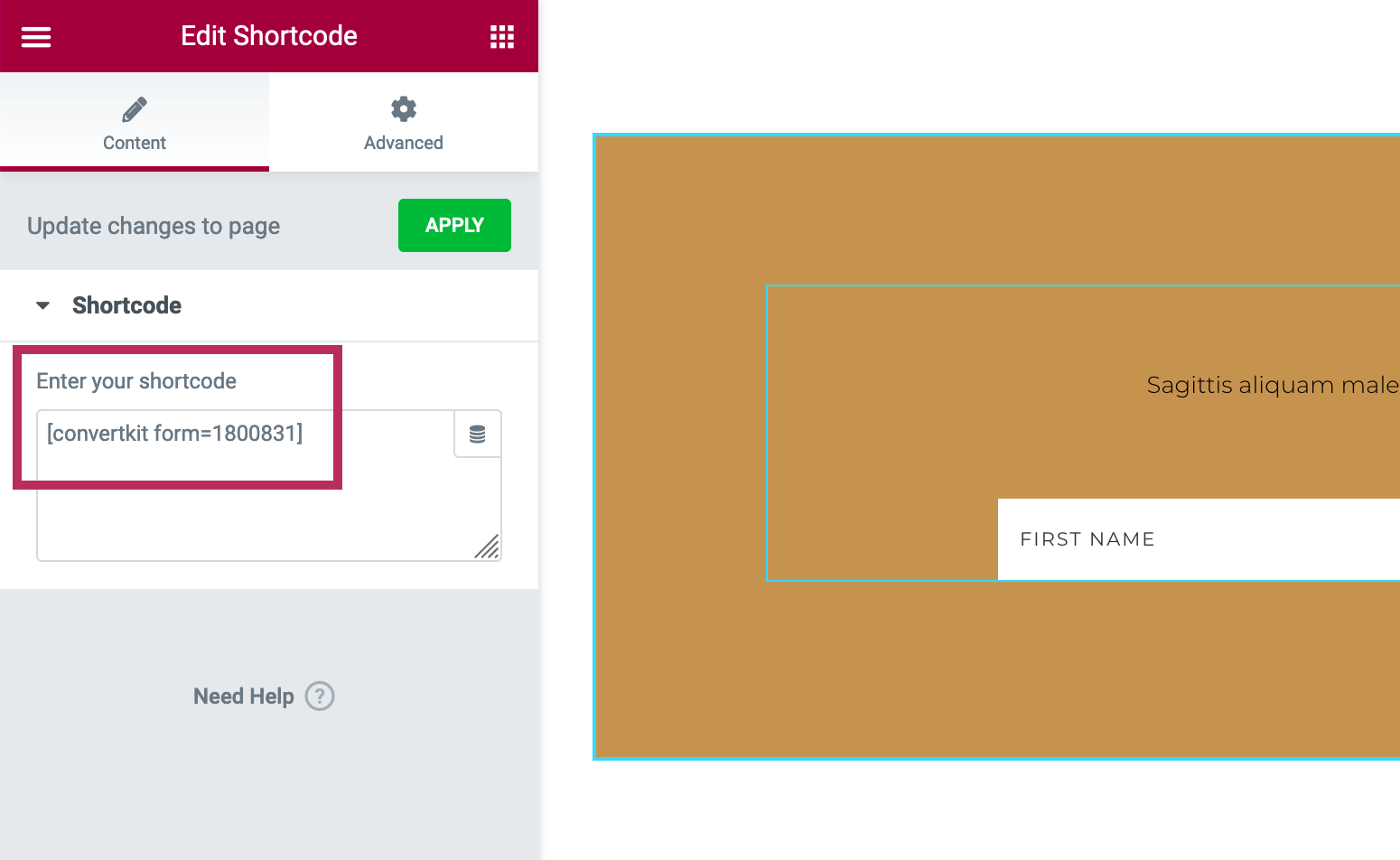
Troubleshooting - Form does not Show
If you previously installed the ConvertKit plugin and just created a new form, you may need to refresh the plugin settings to ensure it has access to your newest form. This happens when you enter the ConvertKit shortcode in the Elementor shortcode widget / Hadleigh Page Settings, and the form does not appear right away.
Go to Settings > Converkit and click the Refresh forms button. Click Save Changes to ensure the plugin has access to all ConvertKit forms.
Change the Colors
To change the colors of the ConvertKit subscription form located in the WordPress blog pages and Elementor pages, go to Appearance > Customizer and click on "Hadleigh Colors." Use the Subscription Form Colors section to change the text colors and button colors in the forms.
MailerLite
Although the default email marketing form included with the theme is a MailChimp form, you can easily switch to MailerLite using the the steps below.
Create the Form
Important Note: If you want the MailerLite form to look exactly like the subscription form within the theme demo, follow the steps below when creating a form. You are welcome to use an alternate style or form type, these steps are for those customers who want the same exact style as the theme demo.
Within your MailerLite account, click on "Forms" section within your account screen. Next, click on the Create form button to create a new subscription form. As shown in the screenshot below, make sure you select Embedded form for the form type. To complete the setup, give your form a unique name and select a subscriber group.
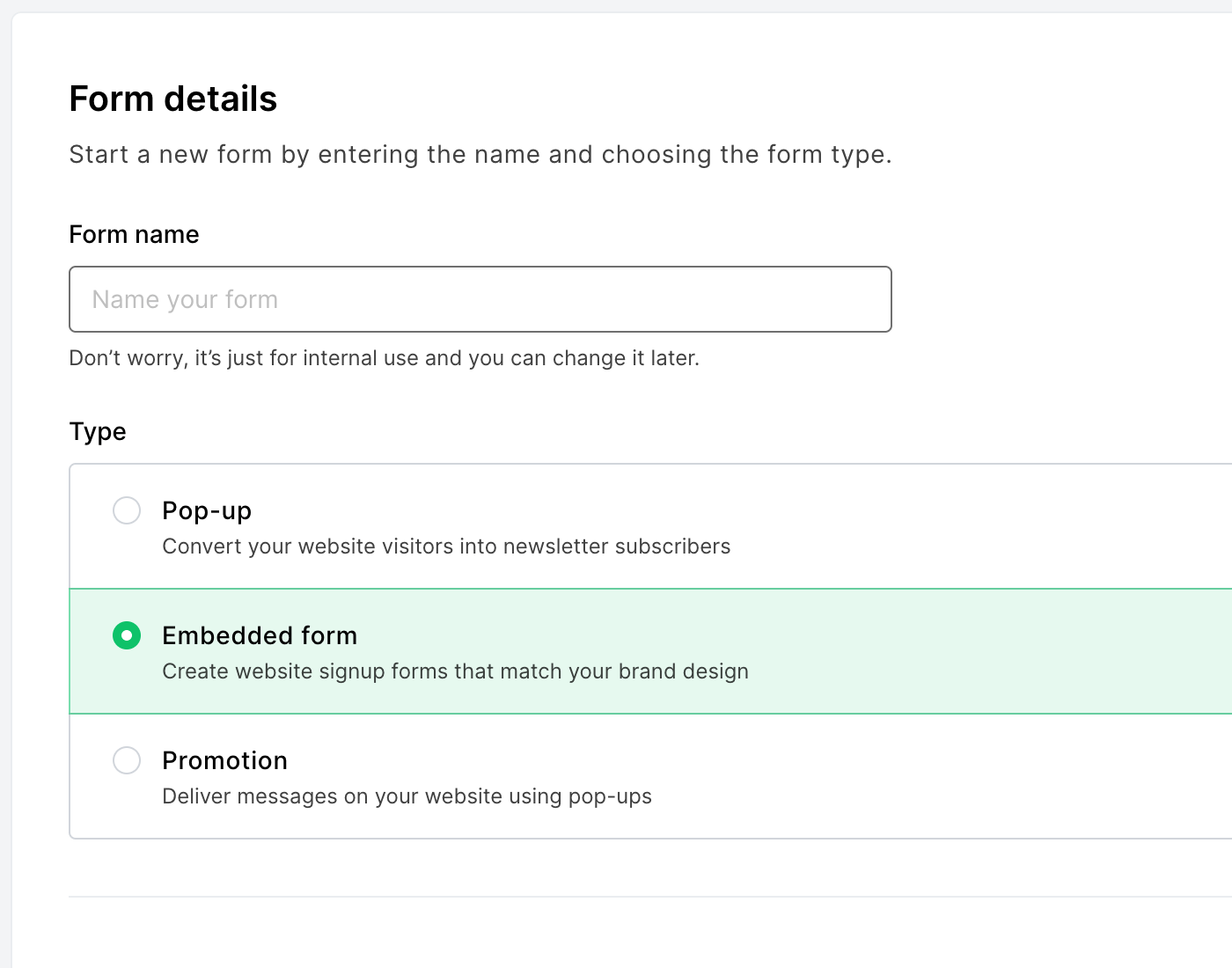
Use the MailerLite form builder to add fields and customize the text of your subscription form. First, you can click on the pencil icon to add a "Name" field to your form.

Using the settings menu on the right of the screen, click the Add field button to add a Name field to the form.

Use the MailerLite form builder to change the order of the form fields (Name and then Email Address) and replace the default form text with your own content.
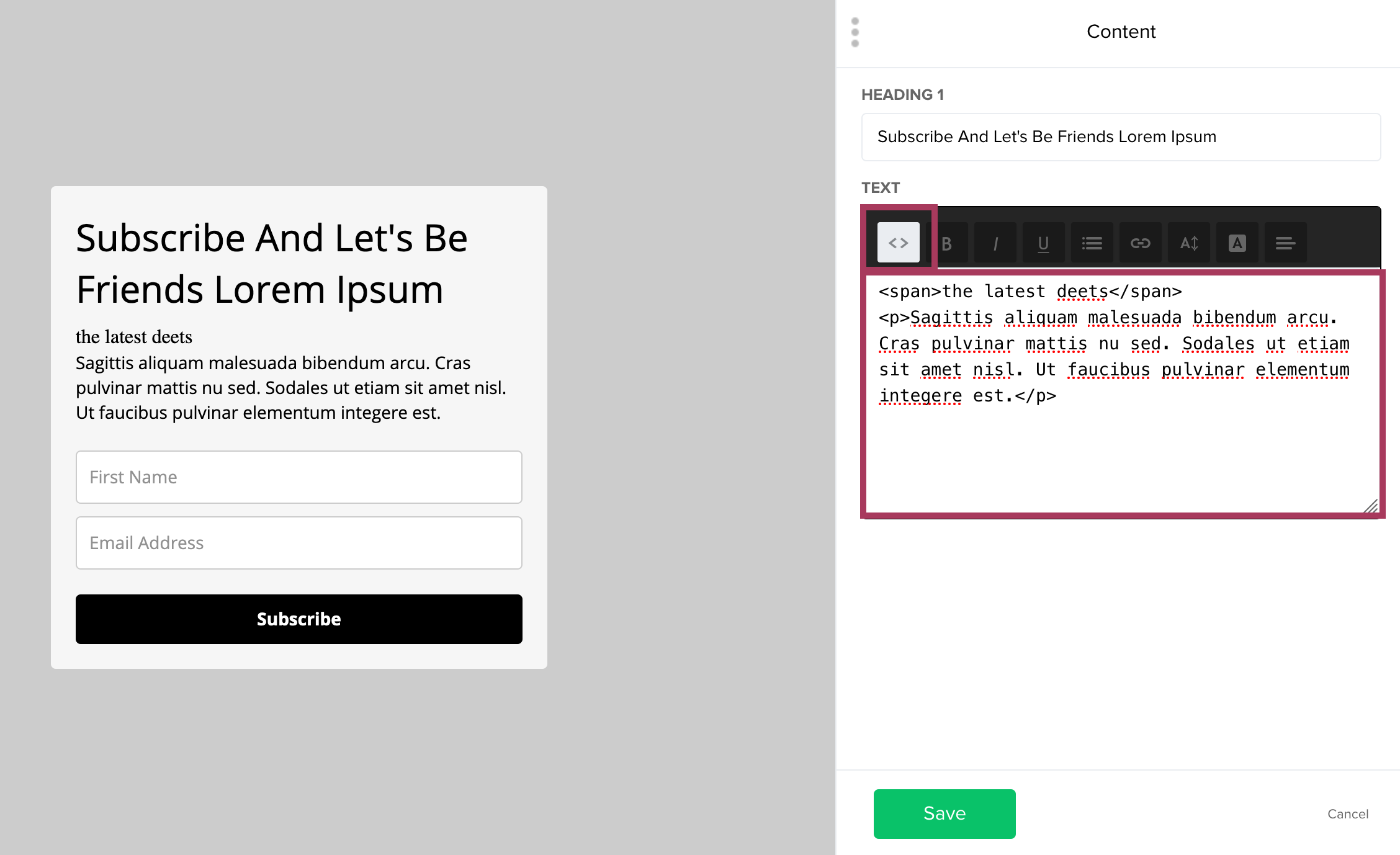
If you want to add the script text to the MailerLite form, click on the < > icon to switch to the code editor as shown in the screenshot below. Using the HTML code in pink, add the placeholder code into the MailerLite code editor. The HTML code consists of two elements - one for the script font ("the latest deets") and one for the regular form paragraph text.
<span>the latest deets</span>

<p>Sagittis aliquam malesuada bibendum arcu. Cras pulvinar mattis nu sed. Sodales ut etiam sit amet nisl. Ut faucibus pulvinar elementum integere est.</p>
Click the green Save button to save all form changes. You do not need to modify the default styles of the form. All styling will come from the theme code. As shown in the screenshot, the final form still has the default MailerLite styles.
Add to WordPress
To add the form to your website, I recommend using the JavaScript snippet available in the Form Overview screen of your MailerLite account. The JavaScript code for the theme form is shown in the screenshot below. It consists of two snippets of code.
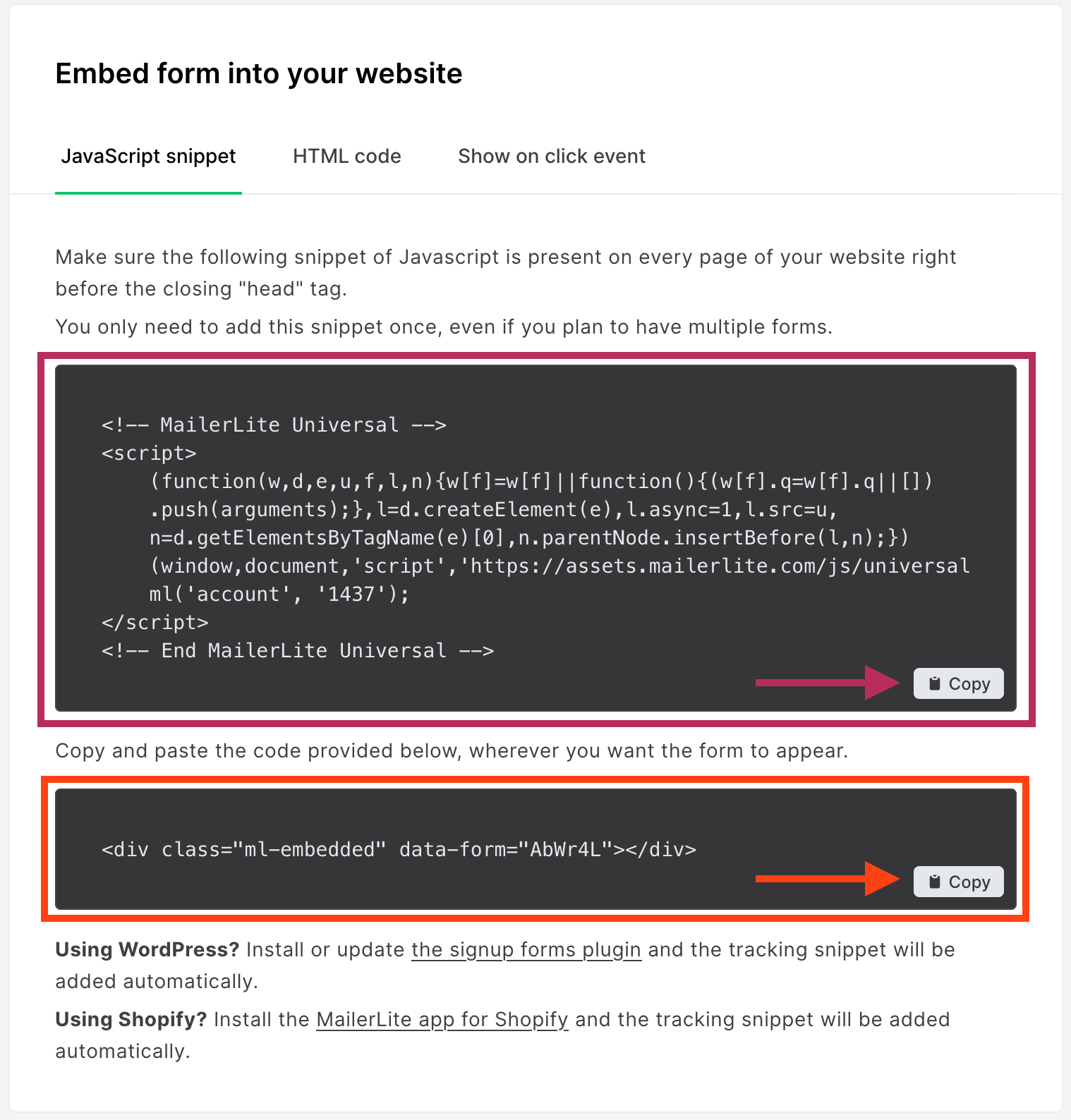
Follow the instructions below to add the two snippets of code to your WordPress site.
- Header code:
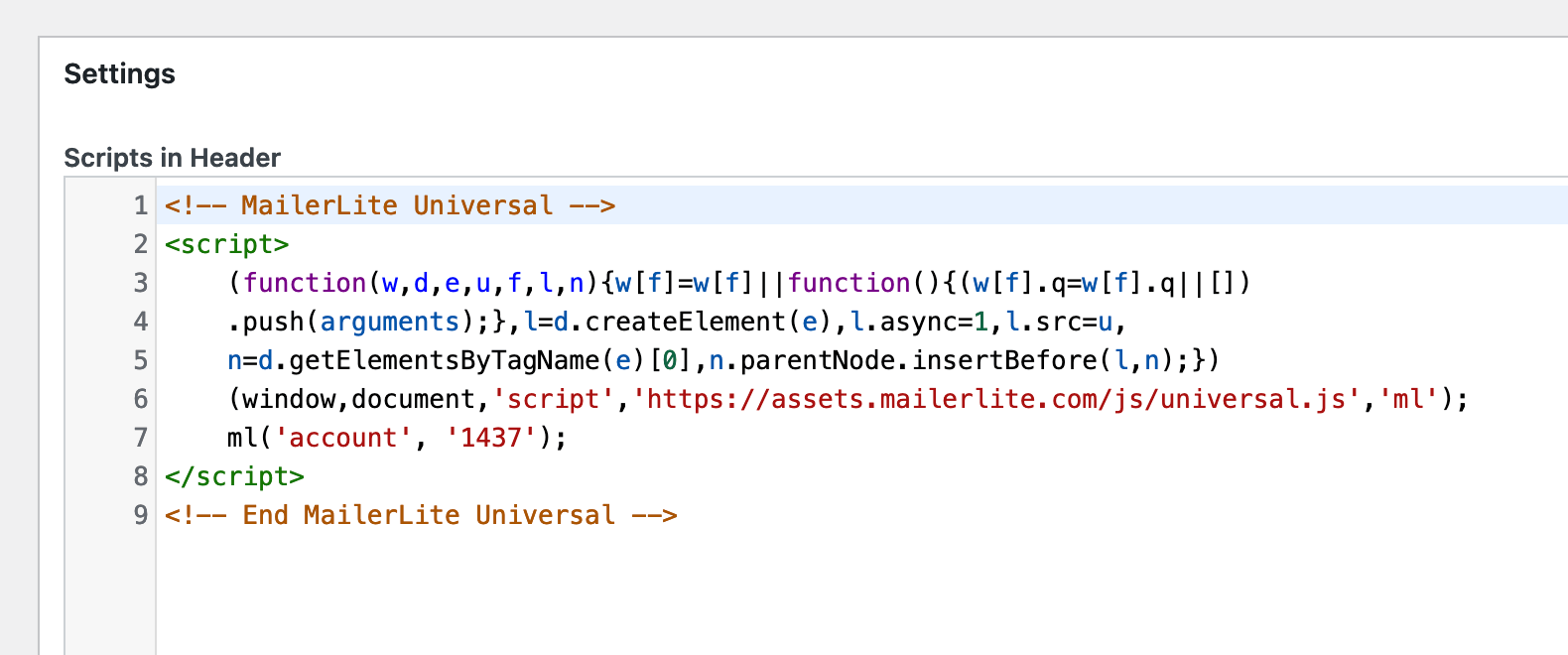
The first snippet of code (highlighted in dark pink above) should be addded to the header of your WordPress website. To add the code, I recommend using the Insert Headers and Footers plugin.
After activating the "Insert Headers and Footers" plugin on your site, navigate to Settings > Insert Headers and Footers. As shown in the screenshot below, paste the first snippet of code in the Scripts in Header text box. After adding the code, click the blue "Save" button at the bottom of the screen to save your changes.
- Form code:
The second snippet of code (highlighted in bright orange above) will be used to display the actual form on your Elementor and blog pages. It is best to convert the HTML code into a WordPress shortcode, which will make it easier to add the form within the existing theme settings and pages.
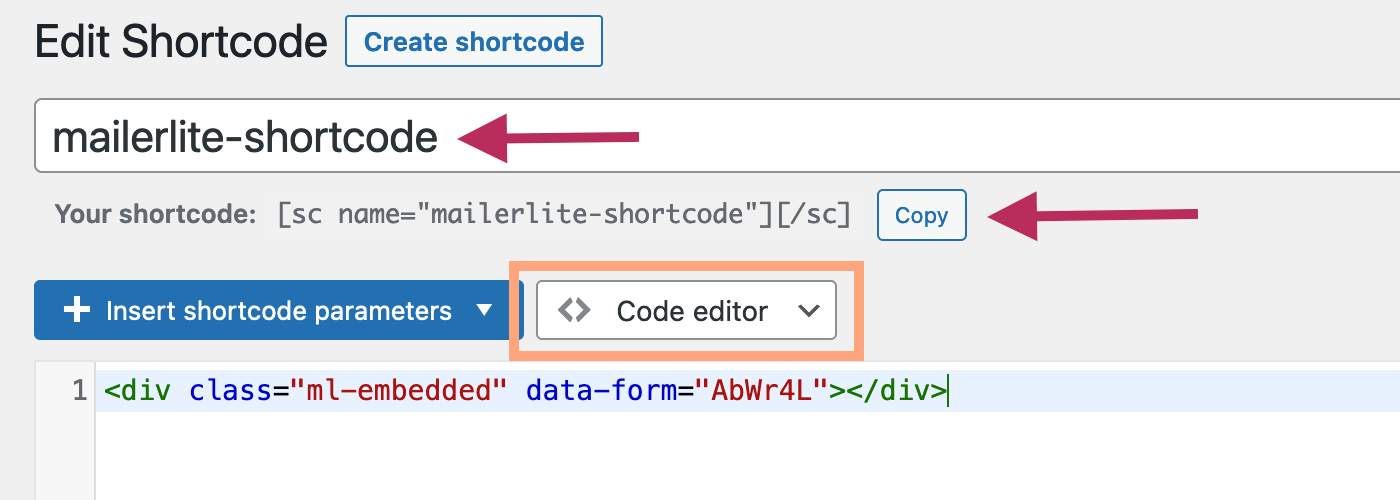
To convert the HTML code into a WordPress shortcode, you can use the Shortcoder plugin. Download and activate the plugin onto your site.
After activating the plugin, go to Shortcoder > Create shortcode. As shown in the screenshot below, make sure you are using the Code editor. Paste in the second snippet of code into the Code editor. Add a custom name and shortcode within the shortcode settings. Please take note of the MailerLite shortocde. This is how the form will be added to your WordPress blog pages and Elementor pages.
Display the Form on your Pages
If you are creating a WordPress blog page, enter the MailerLite shortcode into the "Enter Form Shortcode" field of the Hadleigh Page Settings.
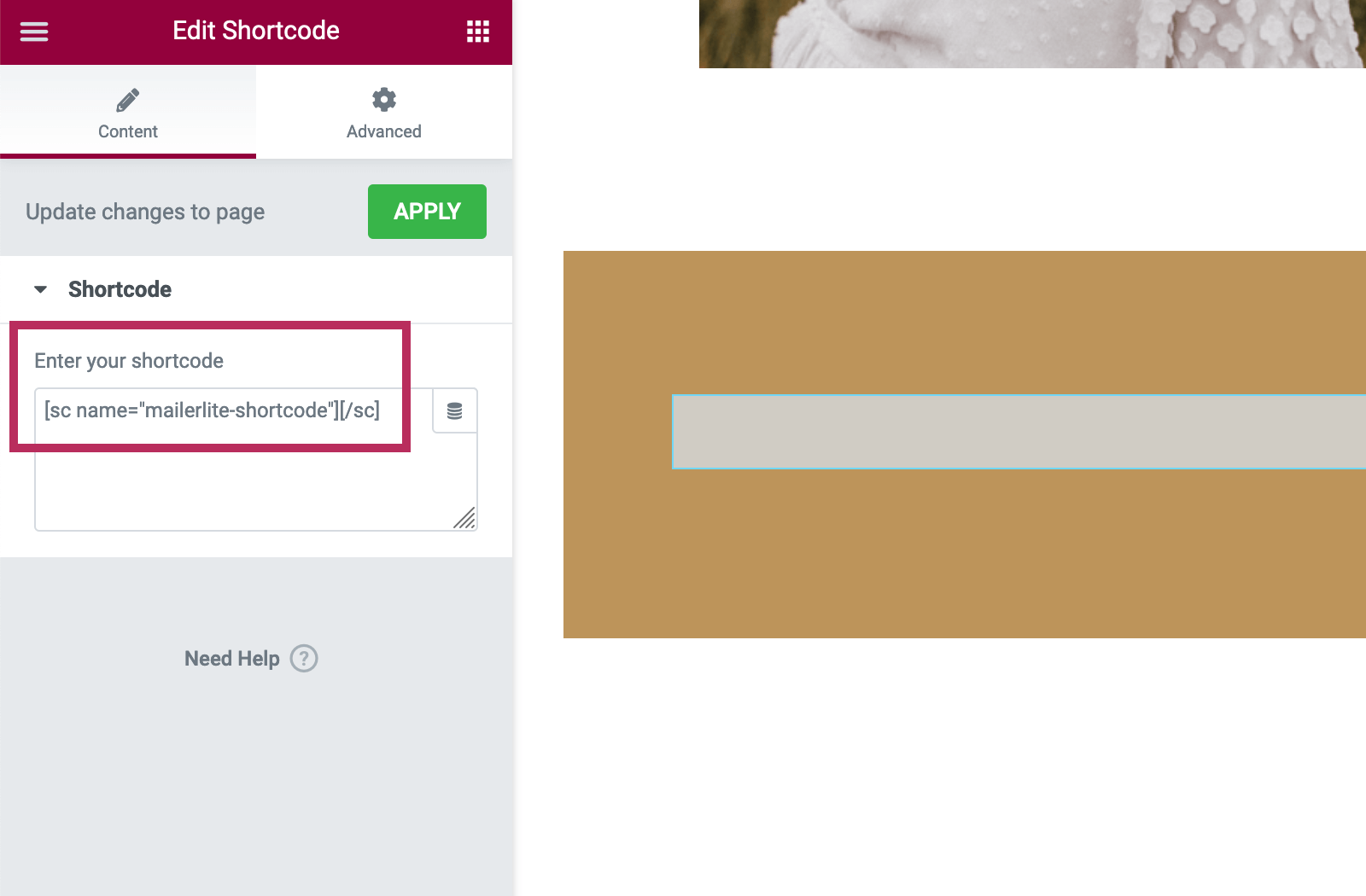
If you are editing an Elementor page, enter the MailerLite shortcode into the Elementor shortcode widget settings. An example is shown in the screenshot below.
Change the Colors
To change the colors of the MailerLite subscription form located in the WordPress blog pages and Elementor pages, go to Appearance > Customizer and click on "Hadleigh Colors." Use the Subscription Form Colors section to change the text colors and button colors in the forms.
Flodesk
Although the default email marketing form included with the theme is a MailChimp form, you can easily switch to Flodesk using the the steps below.
Please note: Due to the advanced design options with Flodesk, the theme does NOT modify the styling of the Flodesk forms in anyway. All form styles created within your Flodesk account will appear the same on your WordPress site. When creating your subscription form within Flodesk, please finalize the style and design of your form before adding it to your WordPress site.
Adding Flodesk Header Code
After you create a Flodesk form, you will be provided with code to add the form to your WordPress site. An example is shown in the screenshot below.
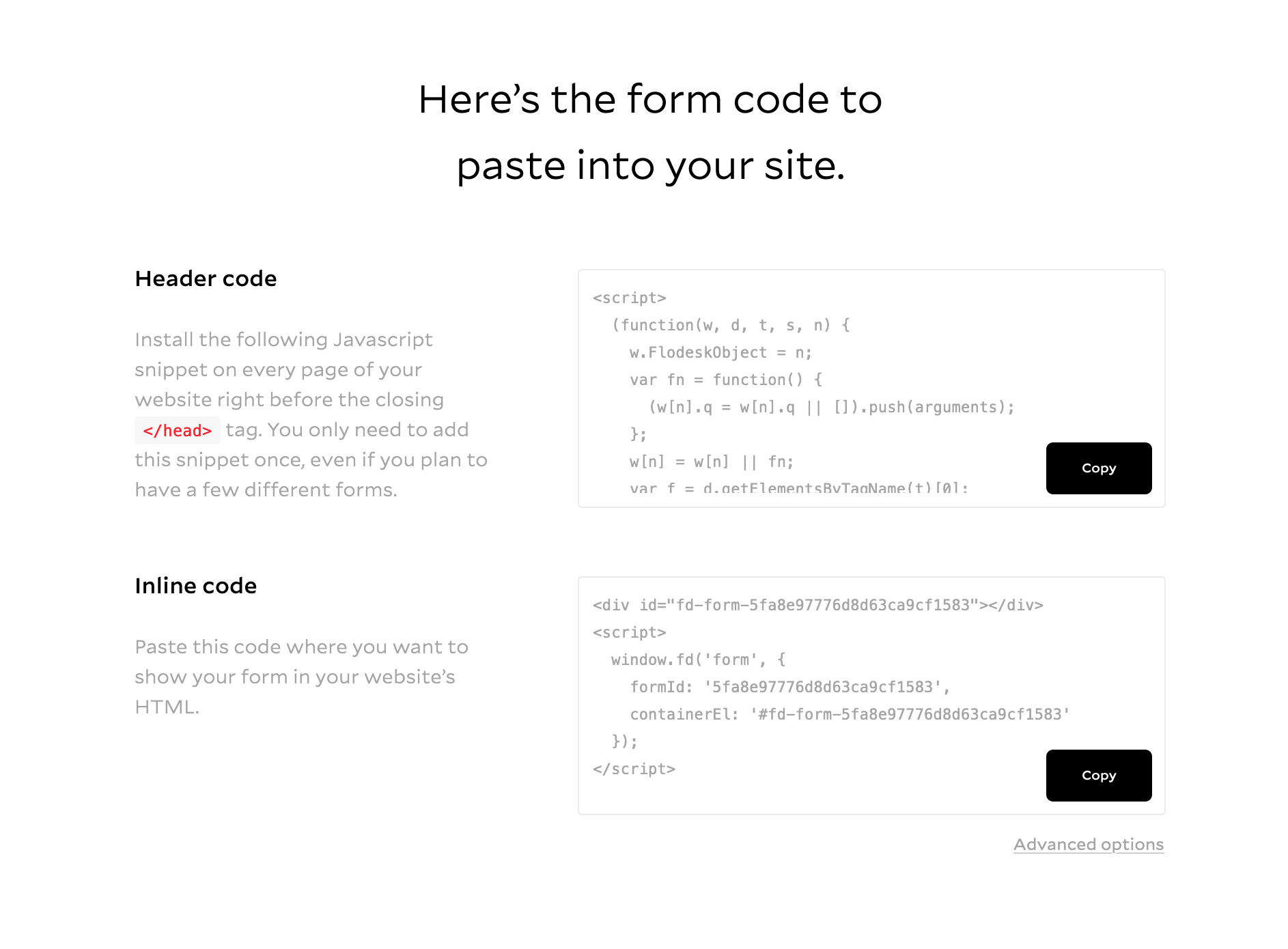
There are 2 options for adding the header code to your site.
- WordPress Theme Editor
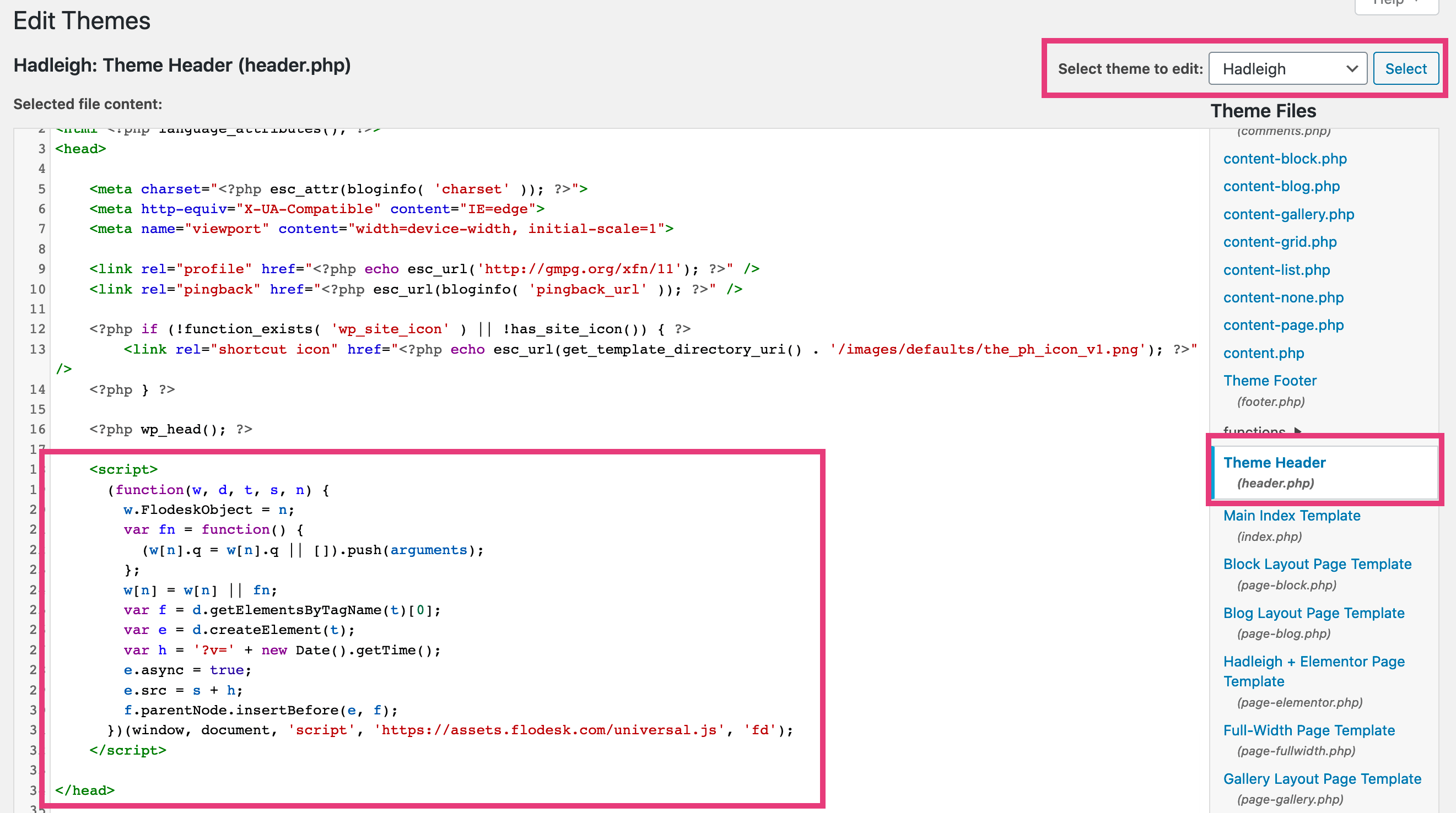
You can add the theme code directly to the header.php file of the theme. From your Flodesk account, copy the Header code.
Within the WordPress Dashboard, navigate to Appearance > Theme Editor. For the "Select theme to edit" dropdown menu, make sure the Hadleigh theme is selected. Next, on the right of the screen, click on the Theme Header (header.php) file. As shown in the screenshot below, paste the Header code immediately above "</head>".
Please note: When updating the theme in the future, your custom Header code will be lost in a theme update. You will need to repeat this step with each theme update. To avoid this, please refer to option #2 for working with a plugin instead.
- Insert Headers and Footers Plugin
Instead of modifying the source code of the theme, you can use a plugin to add the Flodesk code to your WordPress site. Please refer to this Flodesk help article and scroll to the "Adding the header code with a plugin" section. The help article has detailed instructions and screenshots for working with the plugin.
Adding the Flodesk Form
Flodesk provides inline HTML code for each form. It is best to convert the HTML code into a WordPress shortcode, which will make it easier to add the form within the existing theme settings and pages.
To convert the HTML code into a WordPress shortcode, you can use the Shortcoder plugin. Download and activate the plugin onto your site.
After activating the plugin, go to Shortcoder > Create shortcode. As shown in the screenshot below, make sure you are using the Code editor. Paste the Flodesk inline HTML code into the Code editor. Add a custom name and shortcode within the shortcode settings. Please take note of the Flodesk shortocde. This is how the form will be added to your WordPress blog pages and Elementor pages.
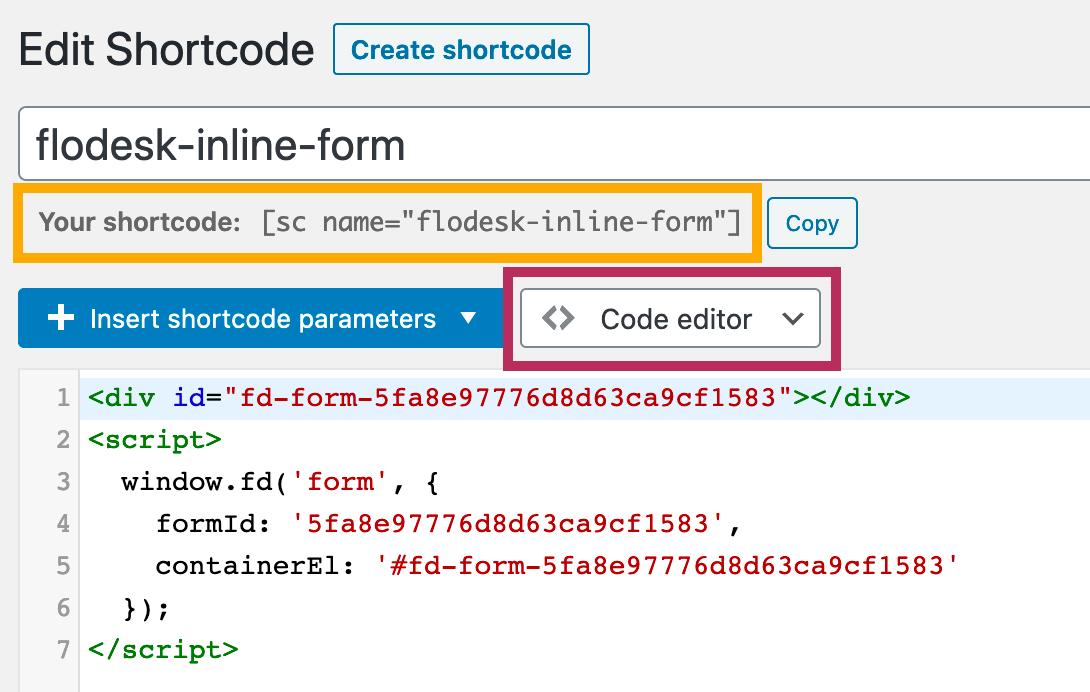
If you are creating a WordPress blog page, enter the Flodesk shortcode into the "Enter Form Shortcode" field of the Hadleigh Page Settings.
If you are editing an Elementor page, enter the Flodesk shortcode into the Elementor shortcode widget settings. An example is shown in the screenshot below.
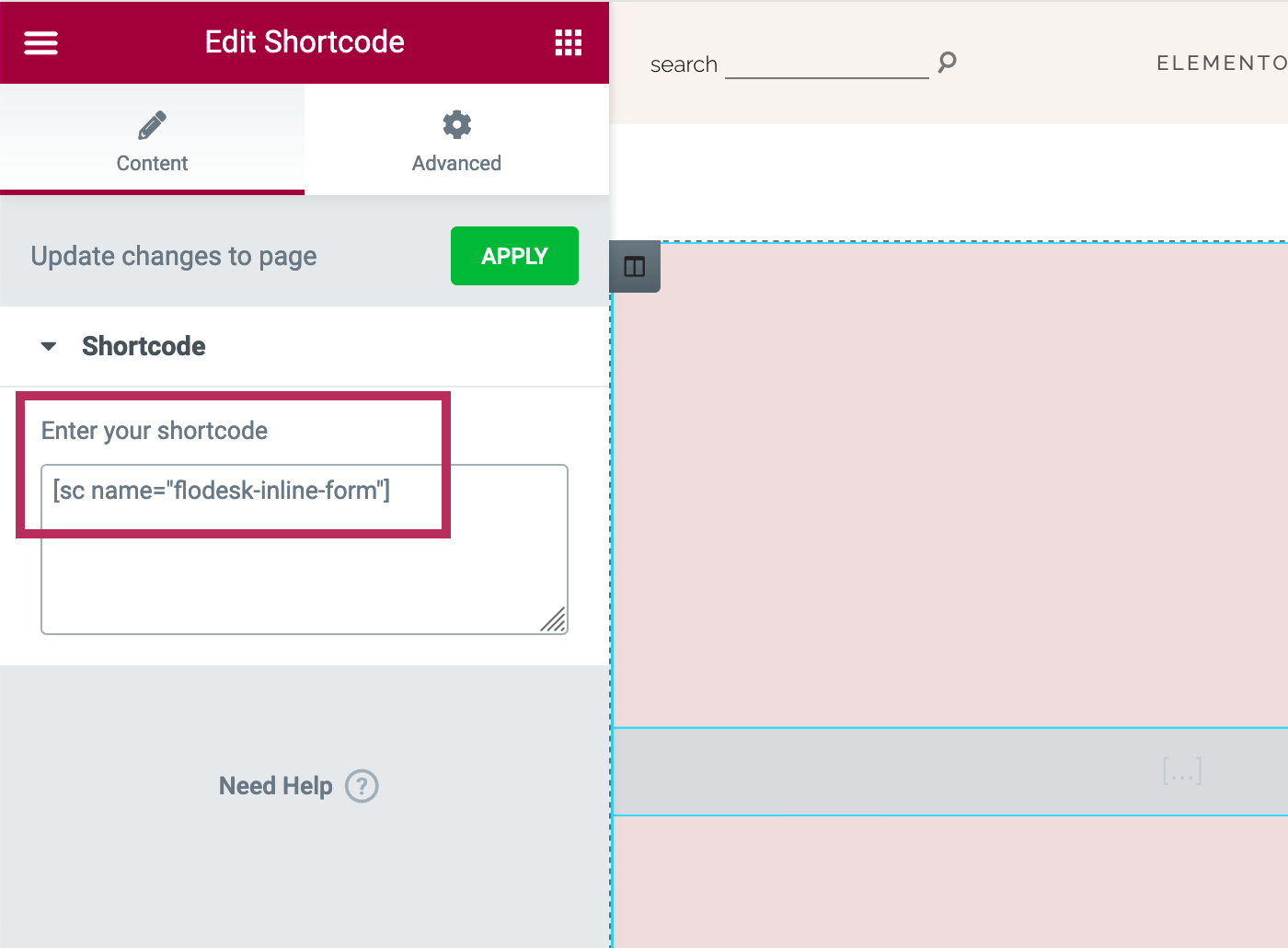
Contact Forms
There is one custom contact form included in the theme, as seen on the "Contact" page of the theme demo. Follow the steps below to add this form to your site.
Contact Form 7
Install and Activate the Contact Form 7 plugin.
Plugin Reference Page: Contact Form 7
To create a custom Contact Form, navigate to Contact > Contact Forms. Click Add New to add a new form. Copy and paste the code below to create the contact forms in the demo.
<div class="hadleigh-custom-contact-form"> [text* your-name placeholder "Name*"] [email* your-email placeholder "Email Address*"] [text your-subject placeholder "Subject"] [textarea your-message x5 placeholder "Message"] <span class="hadleigh-custom-submit-button">[submit "Submit"]</span> </div>code copied!
After creating the form, place the related shortcode in the desired page.
Contact Form 7: Configuration Error
After importing the Contact Form from the theme demo, you will note there is a configuration error listed for the contact form as shown below. To fix the configuration error, you need to add your email address to the contact form settings. Below the configuration error message, click on "Edit" to update the form settings.
Once you are editing the contact form, click on the "Mail" tab at the top of the form. Within the Mail tab, replace the default email address with your own email address. Click on the link "Setting Up Mail" for additional help with configuring the Contact Form 7 plugin.
Page Layouts + Settings
Select from nine different page layouts, including: Default Template, Full-Width, Full-Width Narrow, Blog, Block, Grid, List, Gallery, and Hadleigh + Elementor.
Under the text editor for each page, the Hadleigh Page Settings menu allows you to tailor the options for a page, including adding a featured element, filtering posts by category, or displaying a sidebar.
WordPress Gutenberg: If you want to use the alignwide and alignfull classes for Gutenberg, select the Full-Width Narrow page template when creating pages.
Select a Page Layout
To select or change the layout of your page, click on the "Template" tab on the right of the screen. Using the Template dropdown, select your preferred page layout from the list. The page templates can be divided into two types of pages:
- Static pages such as a landing page or about page:
- Default template: Page with a sidebar.
- Full-width template: Page with no sidebar. Content is the width of the theme container.
- Full-width Narrow template: Page specifically configured for alignwide and alignfull options in Gutenberg.
- Hadleigh + Elementor: Page specifically configured for Elementor. Content is the width of the entire screen.
- WordPress Blog pages - When creating a standard blog page, select from the Blog, Block, Grid, List and Gallery layouts.
Page Title
After selecting a page template, use the Hadleigh Page Settings to configure the options for the page. First, for all of the page layouts, you can choose to show/hide the Page Title.
Posts Slider & Featured Images
For all of the page layouts, you can select a Posts Slider, Single Image, Double Images, or Triple Images to appear at the top of the page. Refer to the Post Sliders and Featured Images sections for additional assistance with creating feature elements.
Under the Select Page Feature Type section, select to display your desired feature type. From the dropdown to the right, select the Featured Image or Posts Slider previously created.

Email Marketing / Subscription Form
For all of the page templates, display a subscription form at the top of the page. As shown in the relevant Email Marketing sections of this tutorial (MailChimp, ConvertKit, MailerLite, and Flodesk), enter the shortcode to display your preferred subscription form.

Triple Boxes
For all of the page layouts, you can select a set of Triple Boxes to appear at the top of the page. Refer to the Triple Boxes section for additional assistance with creating this page element.
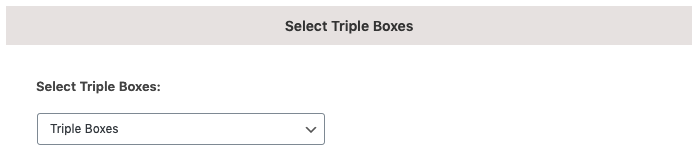
Use the Select Triple Boxes dropdown menu to display your preferred set of boxes.
Blog Options
In addition to adding featured elements and a subscription form, you can choose from the following options for the Blog Layout:
- Enter a "Blog Subtitle" to display above the blog posts
- Select the Category: All categories or a single category
- Show the sidebar on the page

Block Options
In addition to adding featured elements and a subscription form, you can choose from the following options for the Block Layout:
- Enter a "Blog Subtitle" to display above the blog posts
- Select the Category: All categories or a single category
- The Block Layout was not designed with a Sidebar. Therefore, the third dropdown menu will not apply.
Grid Options
In addition to adding featured elements and a subscription form, you can choose from the following options for the Grid Layout:
- Enter a "Blog Subtitle" to display above the blog posts
- Select the Category: All categories or a single category
- Show the sidebar on the page
- Display a full Blog Post as the first item on the page

List Options
In addition to adding featured elements and a subscription form, you can choose from the following options for the List Layout:
- Enter a "Blog Subtitle" to display above the blog posts
- Select the Category: All categories or a single category
- Show the sidebar on the page
- Display a full Blog Post as the first item on the page
Gallery Options
In addition to adding featured elements and a subscription form, you can choose from the following options for the Gallery Layout:
- Enter a "Blog Subtitle" to display above the blog posts
- Select the Category: All categories or a single category
- Show the sidebar on the page
- Change the number of posts that display on each page.

WPZOOM Social Feed Widget
Packaged with the theme, the WPZOOM Social Feed Widget plugin can be used in the Sidebar and the Footer. Upon theme installation, please ensure you install and activate the WPZOOM Social Feed Widget plugin.
Plugin Reference Page: WPZOOM Social Feed Widget
Configure the Plugin
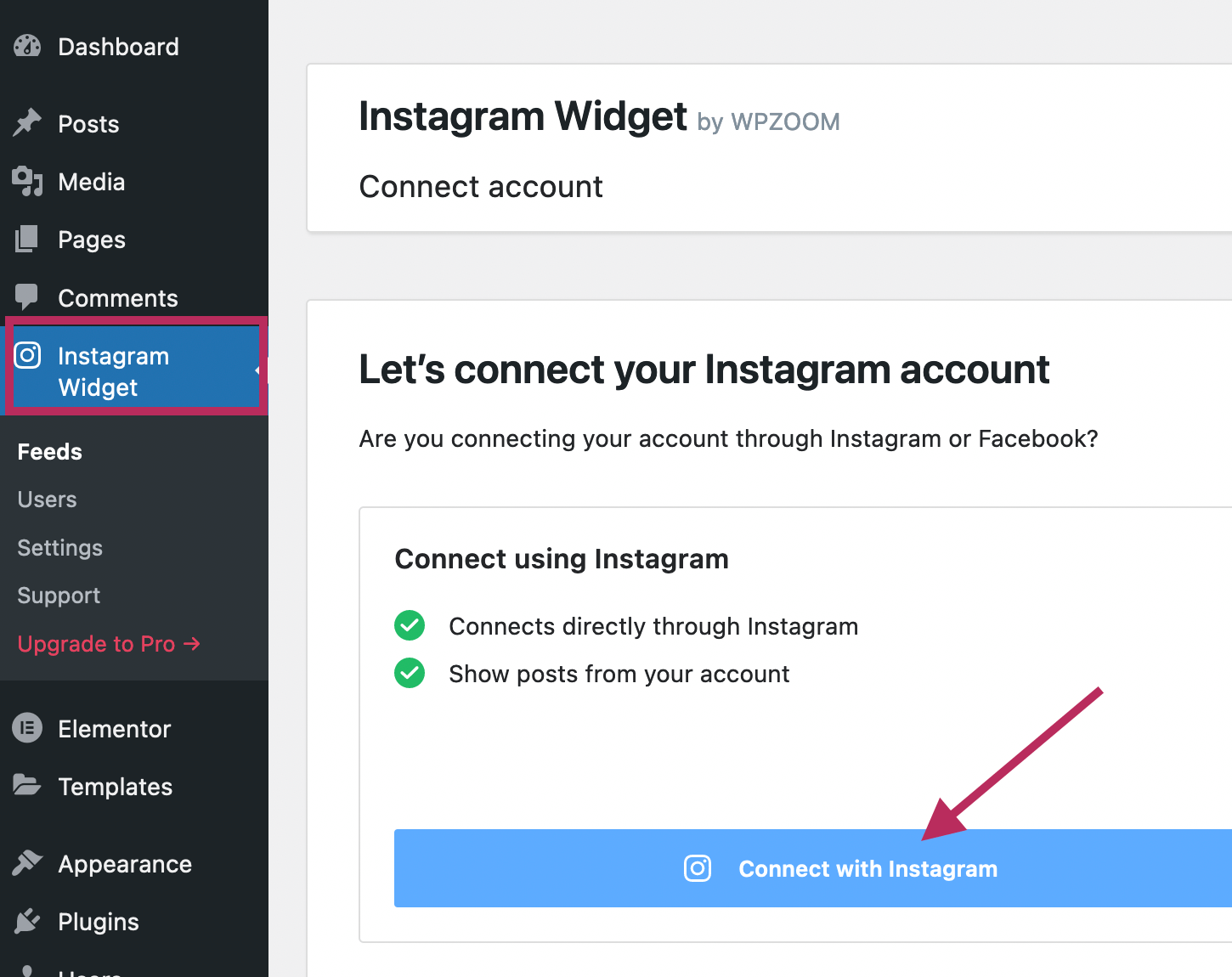
To configure the plugin, from the WordPress Dashboard, click on the Instagram Widget tab. As shown in the image below, click on the Connect with Instagram button to connect your Instagram account to your WordPress website.
You will be redirected to the Instagram website. If you are not already logged in, enter your username and password to login to the Instagram website.
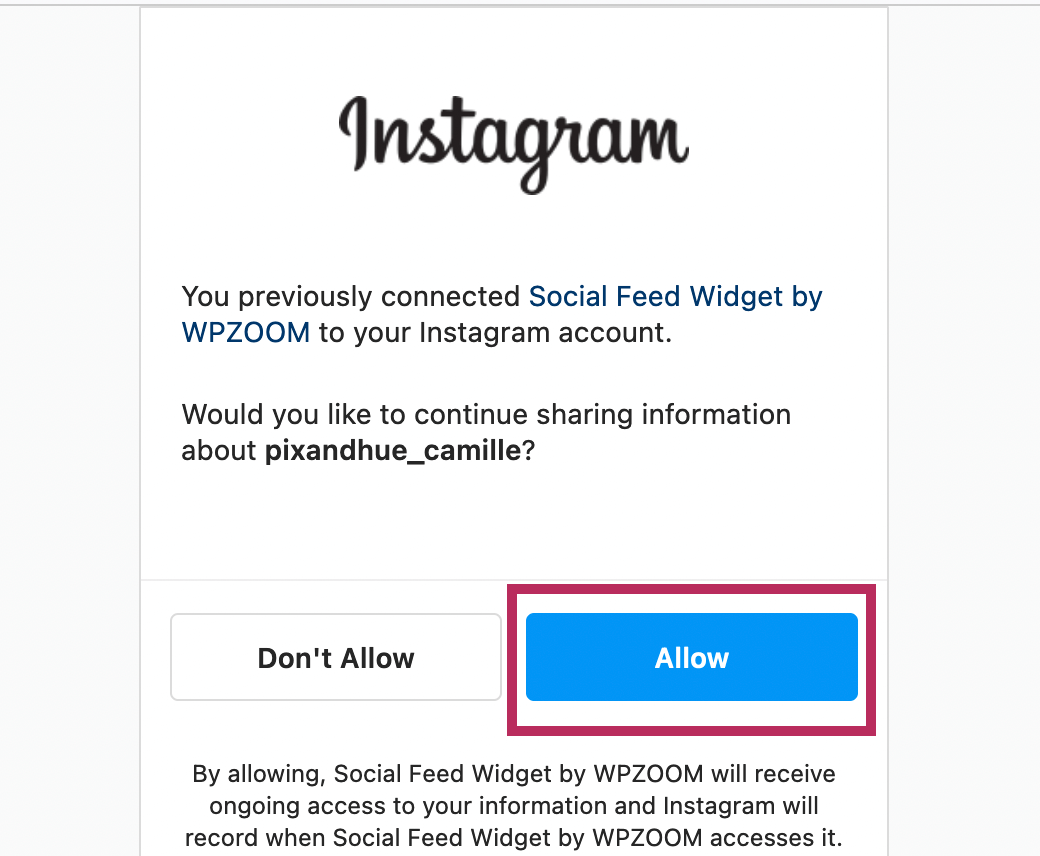
After logging into Instagram, you will be will be prompted to allow the plugin permission to access your Instagram feed. As shown in the screenshot below, click the blue "Allow" button.
Once you have given the necessary permission, the plugin will display a success message that your Instagram account is now connected to WordPress. An example of the success message is shown below.

After you are finished connecting your account, navigate to Instagram Widget > Settings as shown in the screenshot below.
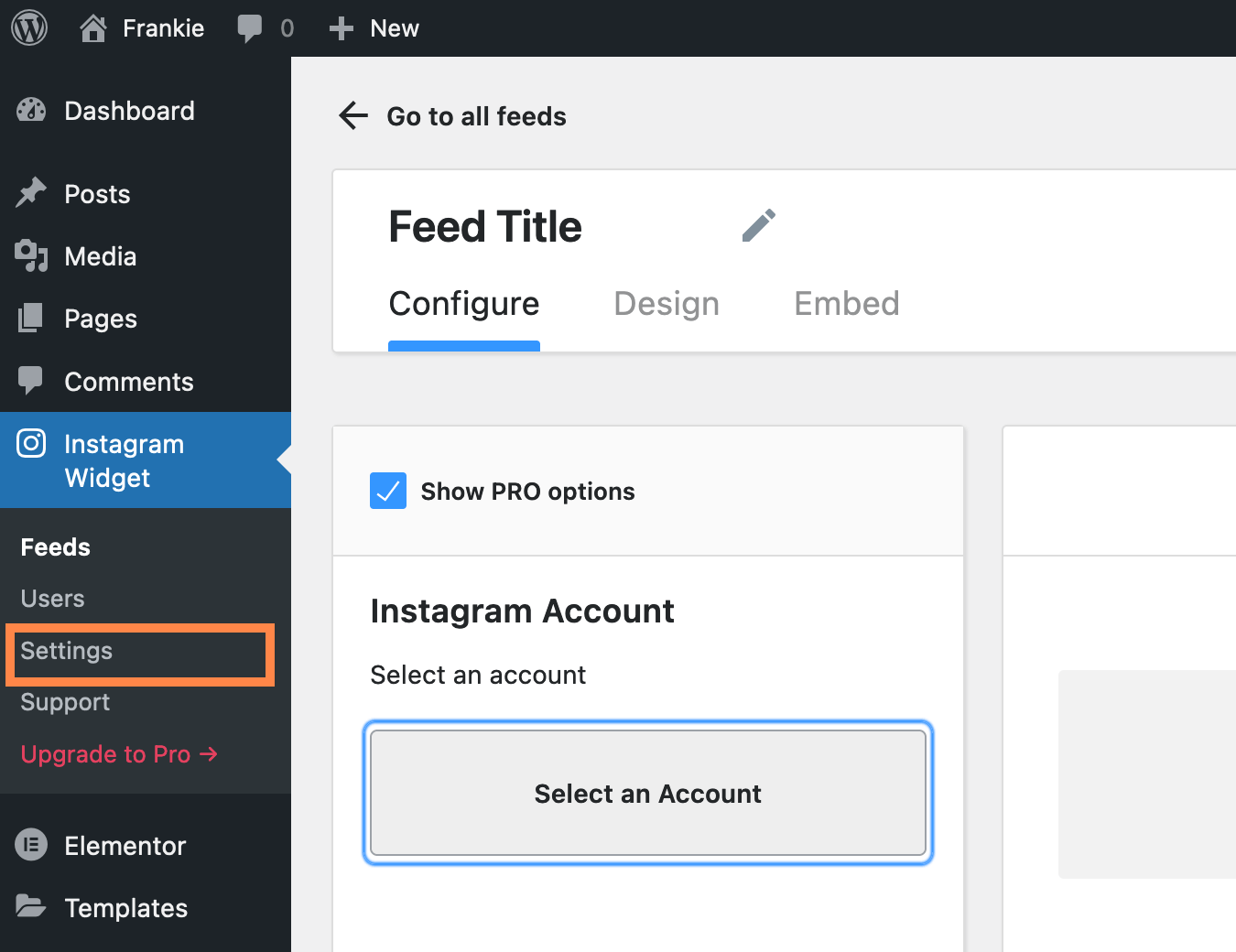
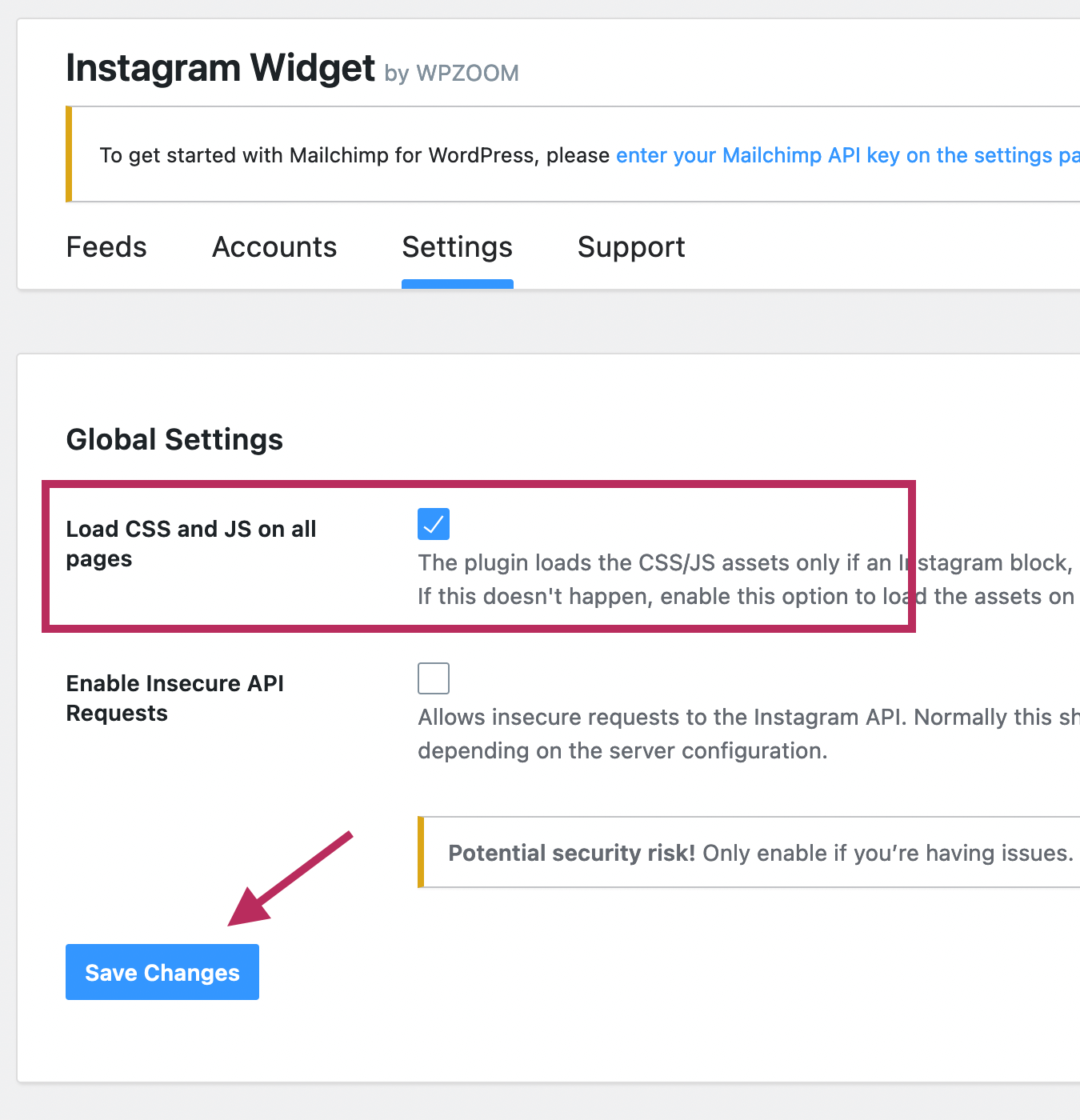
Within the plugin settings, check the box for Load CSS and JS on all pages. Click on the blue Save Changes button to complete the setup of the Instagram plugin.
Use the Plugin
After configuring the WPZOOM Social Feed Widget plugin, refer to the Sidebar and Footer sections of the tutorial to use the plugin in each section of your website.
Sidebar
From the WordPress Dashboard, navigate to Appearance > Widgets to add widgets to the WordPress sidebar.
As shown in the screenshot below, click on the + icon to add new widgets. Enter in "Hadleigh" to the search bar to find the theme widgets.
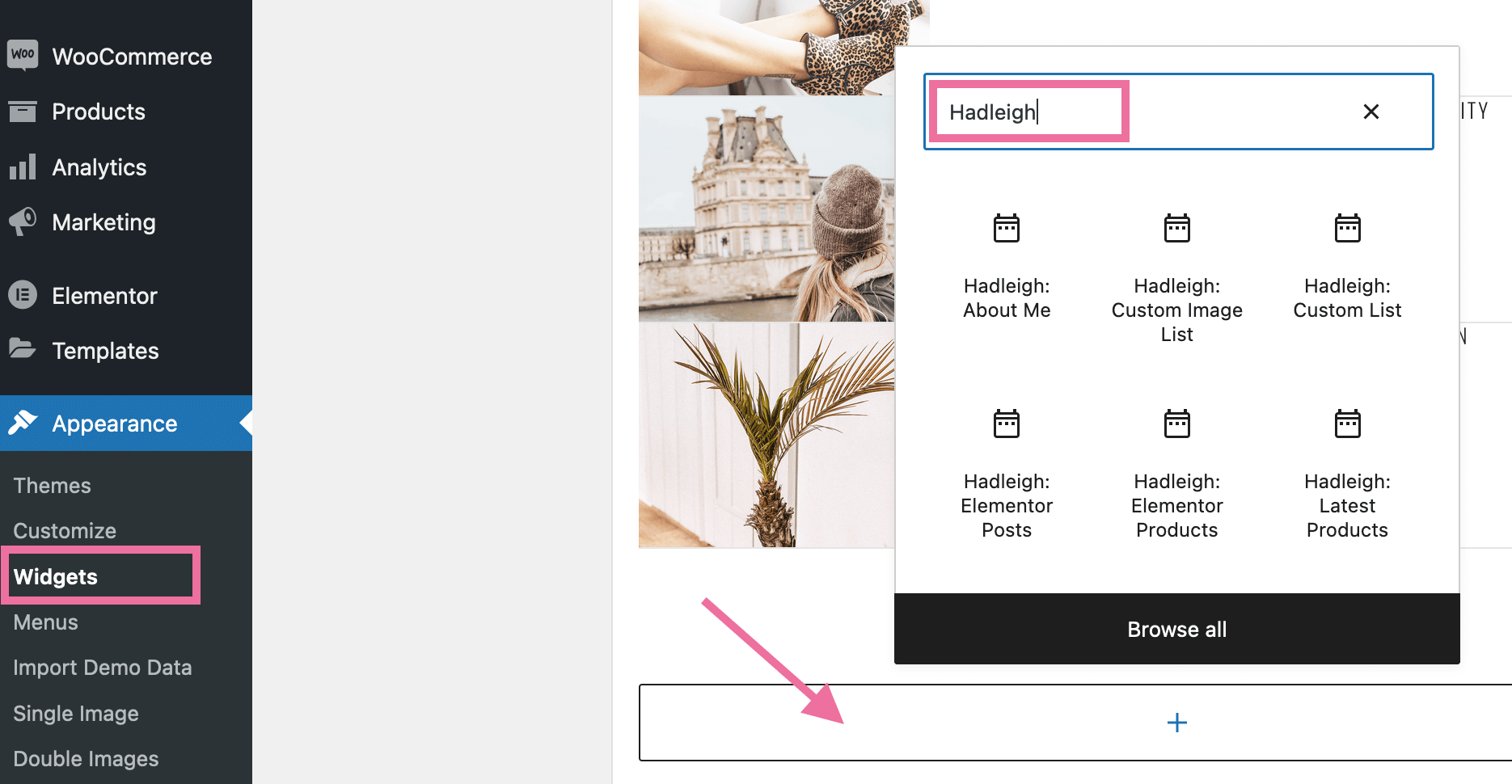
The Hadleigh Theme includes 7 custom widgets and custom styling for the WPZOOM Social Feed Widget:
-
About Me
Displays an "About Me" widget. You can add a custom title, accent word, image, custom text, and display your social media icons. The image below shows the settings used in the theme demo. To get the Image URL of your preferred About Me image, go to Media > Library. Click on the image, and copy the "URL" from the image details on the right of the screen.
To add your social media usernames, go to Appearance > Customize and click on "Hadleigh Social Media." Use the text boxes provided to enter your preferred social media links.

-
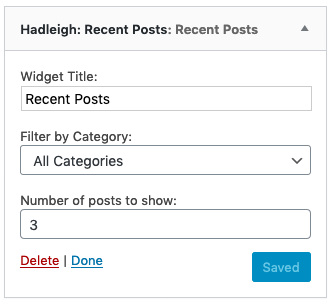
Recent Posts
Displays the image, title, and date of recent posts published to your website. You can select to include all categories or a specific category. You can choose the number of posts to display within the widget. The image below shows the settings used in the theme demo.
-
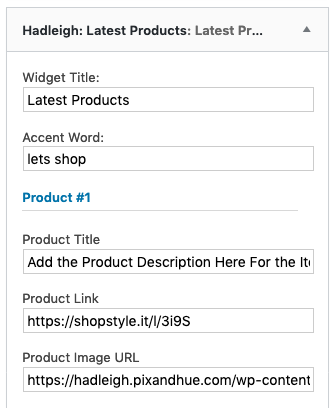
Latest Products
Displays a widget title, accent word, and up to 5 product images with link and title. The image below shows the settings used in the theme demo. To get the Image URL of your preferred product image, go to Media > Library. Click on the image, and copy the "URL" from the image details on the right of the screen.
-
Custom Image List
Displays a custom image list of up to 5 items, including a custom background image, title, and link. The image below shows the settings used in the theme demo. To get the Image URL of your preferred video image, go to Media > Library. Click on the image, and copy the "URL" from the image details on the right of the screen.

-
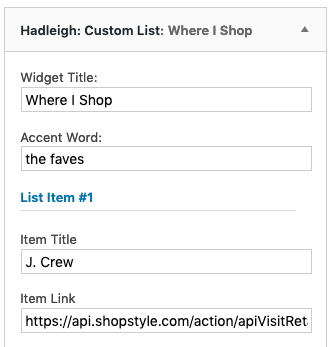
Custom List
Displays a widget title, accent word, and a custom list of up to 10 items. An affiliate link can be added to each item in the list. The image below shows the settings used in the theme demo.
-
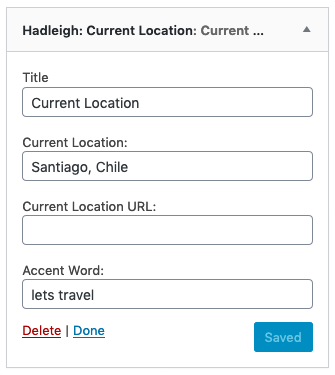
Current Location
Displays a widget title, accent word, and a map of the world with a specific city listed. Add a current location and attach a custom web address to your current location. The image below shows the settings used in the theme demo.
-
Latest Video
Displays a custom image, text, and link to a single video. Additionally, includes a button to direct users to all videos or video channel. The image below shows the settings used in the theme demo. To get the Image URL of your preferred list image, go to Media > Library. Click on the image, and copy the "URL" from the image details on the right of the screen.

-
WPZOOM Social Feed Widget
Packaged with the theme, the WPZOOM Social Feed Widget plugin can be used to display your Instagram feed in the Sidebar and the Footer. Refer to the Instagram section above to enter your Instagram login credentials into the plugin settings.
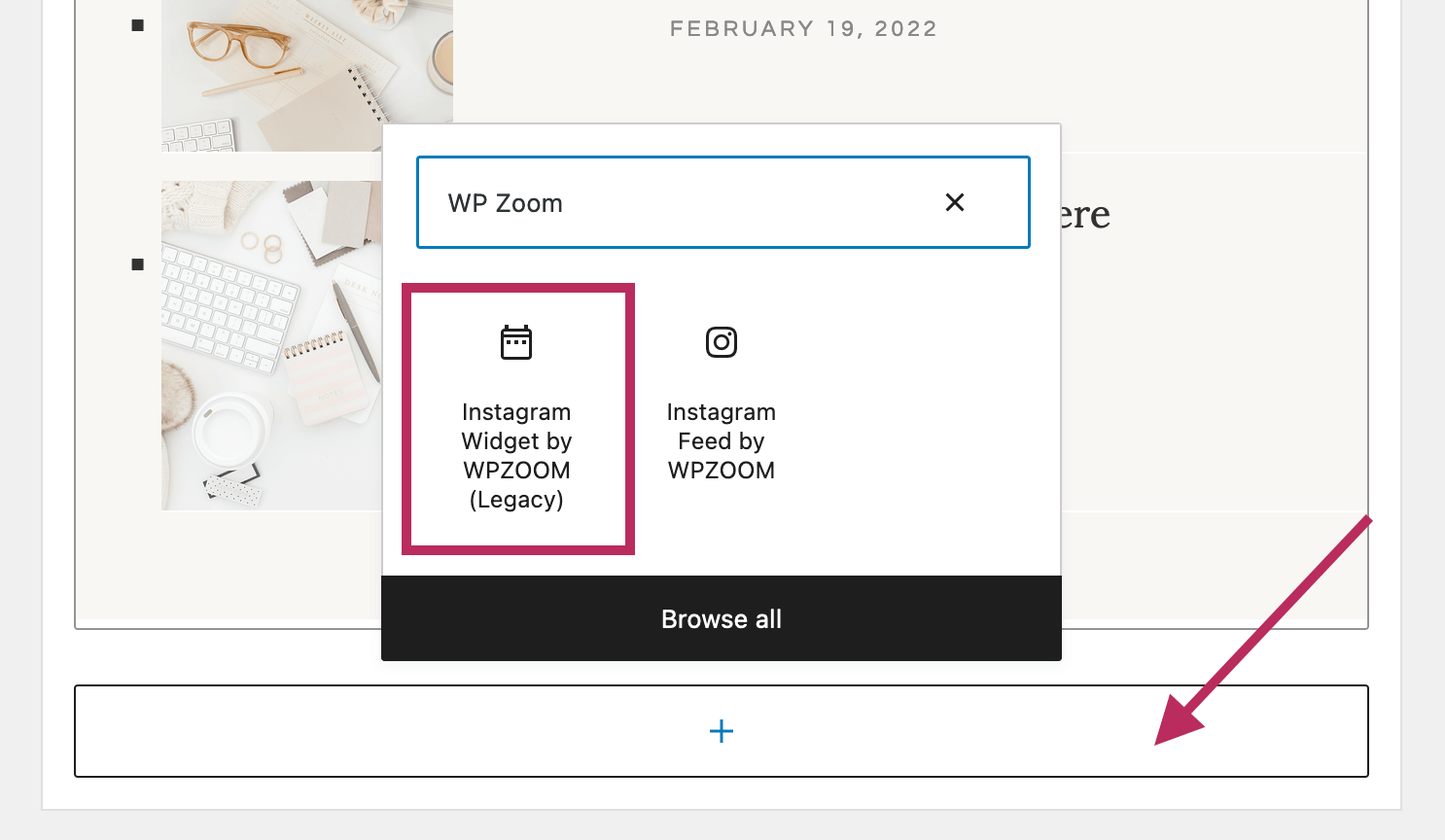
When adding the Instagram feed to your Sidebar, please make sure you select the Instagram Widget by WPZoom (Legacy) widget as shown in the screenshot below.
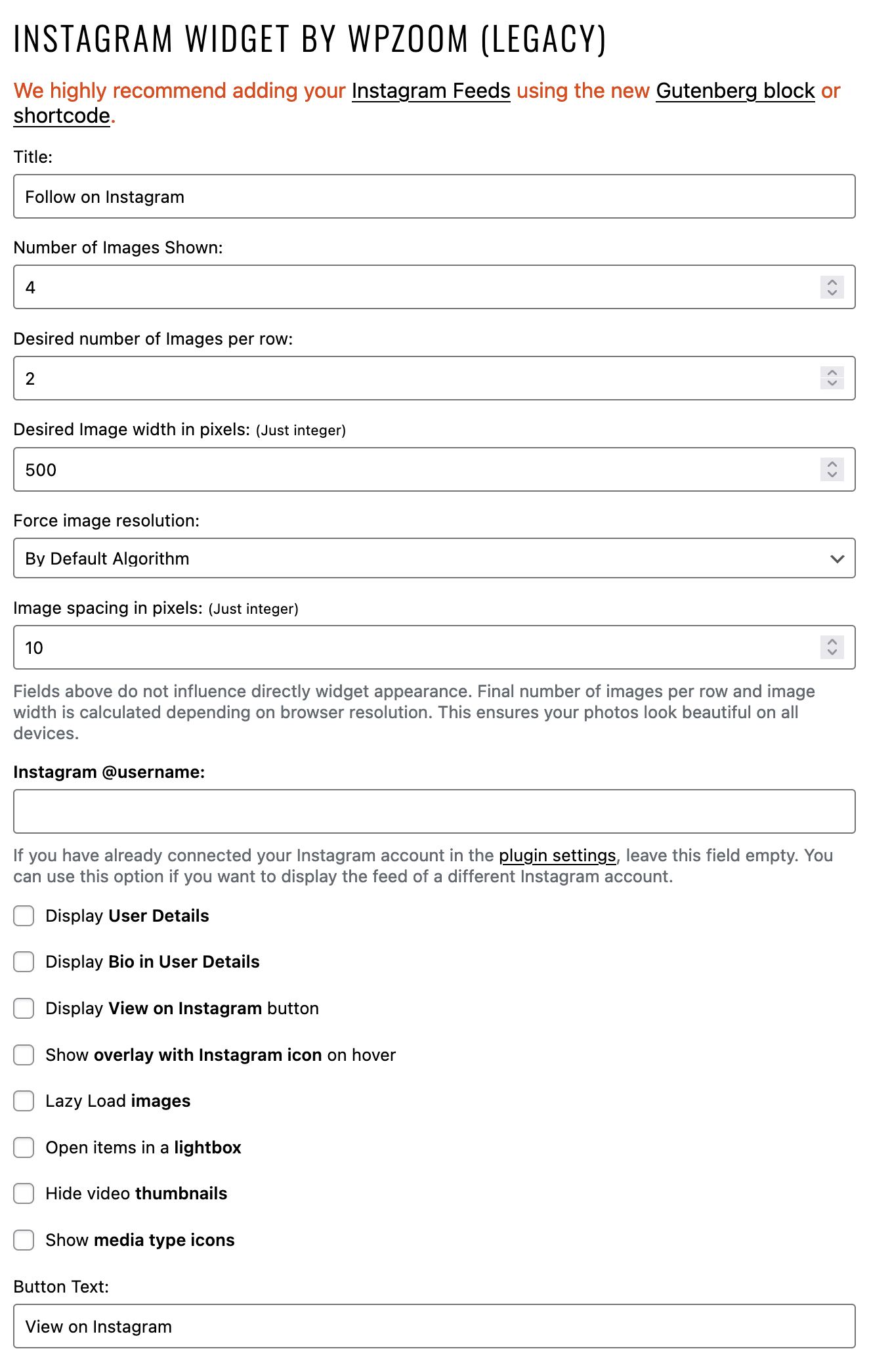
The image below shows the settings used in the Sidebar of the theme demo.
Footer
The Footer in the Hadleigh theme demo is made up of the Instagram Footer, the Footer Menu, and Social Media icons.
If you have extra items in the footer of your website or the layout just doesn't seem quite right, please refer to FAQ item #1 under General Theme Questions in the theme FAQ page. The FAQ shows you how to remove extra WordPress blocks from the footer of your website.
Instagram Footer
Packaged with the theme, the WPZOOM Social Feed Widget plugin can be used to display your Instagram feed in the Sidebar and the Footer. Refer to the Instagram section above to enter your Instagram login credentials into the plugin settings.
When adding the Instagram feed to your Footer, please make sure you select the Instagram Widget by WPZoom (Legacy) widget as shown in the screenshot below.
The image below shows the settings used in the Footer of the theme demo. For the best results, use 6 images.

Footer Menu & Social Media Icons
As detailed in the theme menu section above, create your Footer menu.
To add your social media usernames, go to Appearance > Customize and click on "Hadleigh Social Media." Use the text boxes provided to enter your preferred social media links.
To display the footer menu and/or social media icons in the footer of your website, go to Appearance > Hadleigh Options. Visit the "General Options" tab and enable the Display Footer Menu in Footer option and the Display Social Media in Footer option. The image below shows theme options menu used in the demo.
Affiliate Links
The Hadleigh Theme offers four ways to showcase affiliate links in your website: 1) using HTML from an affiliate service, 2) using a shortcode from an affiliate service, 3) creating a custom product slider, and 4) creating your own custom image and affiliate link pair.
To showcase affiliate links on your website, go to Posts > Add New or Posts > Edit. Below the text editor for each post, you will see the Hadleigh Post Settings section. In this section, you will find the Affiliate Link Settings options.
Location of Affiliate Links: The Affiliate HTML, Shortcode, Custom Product Slider, and Image + Affiliate Link will be showcased with the Blog Page Template, the Block Page Template, and Single Post. When you are creating a page, use the Blog Layout or the Block Layout to ensure the affiliate links visible on your website.
Affiliate HTML
Many affiliate services provide widget tools that allow you to easily create and display collections of affiliate items. After creating a widget, the affiliate service will provide custom HTML code to copy and use within your website.
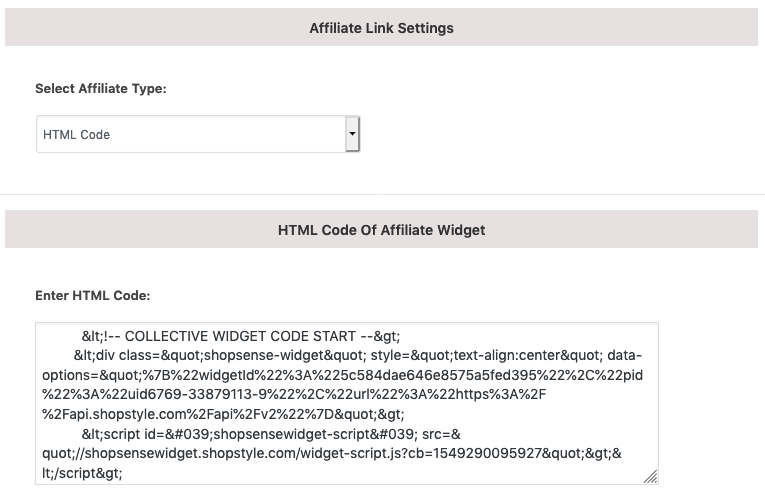
Under the Select Affiliate Type dropdown menu, choose the HTML Code option.
You will see a text box appear under the section titled Enter HTML Code. Copy and paste the HTML code of the affiliate widget into this textbox. An example of an affiliate widget used in the demo is shown below:
Affiliate Shortcode
Many affiliate services provide widget tools that allow you to easily create and display collections of affiliate items. After creating a widget, the affiliate service will provide a shortcode to use within a WordPress website.
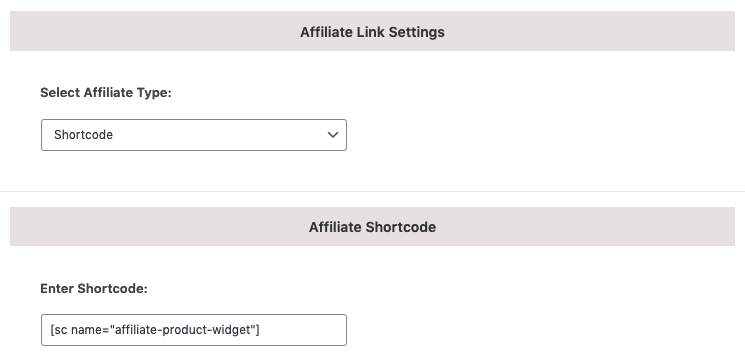
Under the Select Affiliate Type dropdown menu, choose the Shortcode option.
You will see a text box appear under the section titled Affiliate Shortcode. Copy and paste the affiliate shortcode into this textbox. An example of a shortcode is shown below:
rewardStyle Shortcode
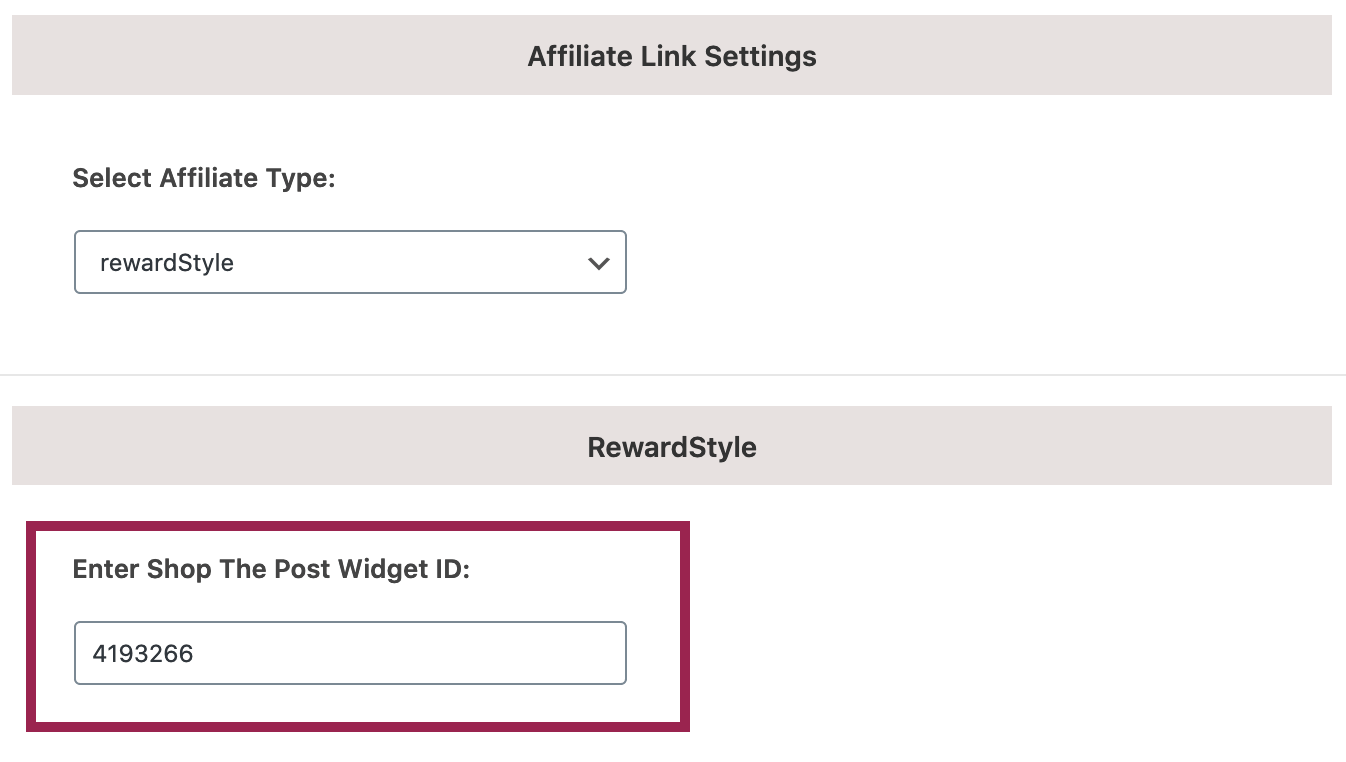
This option is specifically for the rewardStyle "Shop the Post" widget. In the textbox provided, enter the ID number of the rewardStyle widget.
For example, if your WordPress shortcode is [show_shopthepost_widget id="4193266"], ONLY enter the ID number 4193266 in the textbox as shown in the image below.
Custom Product Slider
The Hadleigh Theme allows you to create a custom slider with up to 8 images and external affiliate links. Under the Select Affiliate Type dropdown menu, choose the Product Slider option.
You will see a section titled Custom Product Slider appear. Copy and paste the URL of the affiliate link into the text box titled Product # URL. Make sure that you use the full web address, beginning with http://.
To add your custom image, press the Select Image button, and select an image from the Media Library. An example of a custom product slider is shown below:

Image + Affiliate Link
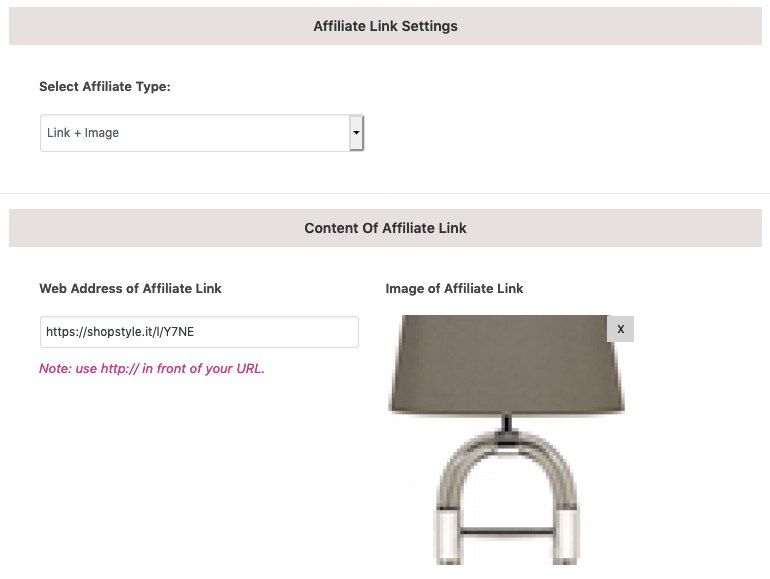
The Hadleigh theme also provides a way to create a custom affiliate link by pairing your own image with an affiliate link. Under the Select Affiliate Type dropdown menu, choose the Link + Image option.
You will see a section titled Content of Affiliate Link appear. Copy and paste the URL of the affiliate link into the text box titled Web Address of Affiliate Link. Make sure that you use the full web address, beginning with http://.
To add your custom image, press the Select Image button, and select an image from the Media Library. An example of a custom affiliate link and image used in the demo is shown below:
WooCommerce
The Hadleigh theme supports the eCommerce plugin WooCommerce, which allows you to add a functional shop to your website. The theme comes with custom stylings so your shop will share a cohesive design with the rest of your site.
Plugin Reference Page: WooCommerce Plugin
Once you have installed/activated WooCommerce onto your WordPress site, the following pre-formatted pages will be added to your Pages list:
- Shop
- Cart
- Checkout
- My Account
The Hadleigh Theme supports one sidebar for WooCommerce, titled the WooCommerce Sidebar, which will appear in Appearance > Widgets after you install and activate the WooCommerce plugin. To add widgets to the WooCommerce Sidebar, drag and drop WooCommerce widgets from the Available Widgets into the WooCommerce Sidebar.
As described in the Theme Options section, you can customize the theme settings for WooCommerce plugin:
- Enable the cart icon in the header of your website.
- Enable the WooCommerce Sidebar.
- Modify the number of products on the Shop page.
- Hide the related products on a single Product page.
- Disable Product Zoom on a single Product page.
- Disable the Lightbox Gallery on a single Product page.
- Disable the Gallery Slider on a single Product page.
WordPress Customizer
Change theme colors by visiting the Appearance > Customize page. After selecting new colors or font sizes for your website, make sure you press the Save & Publish button at the top of the menu to save all changes.
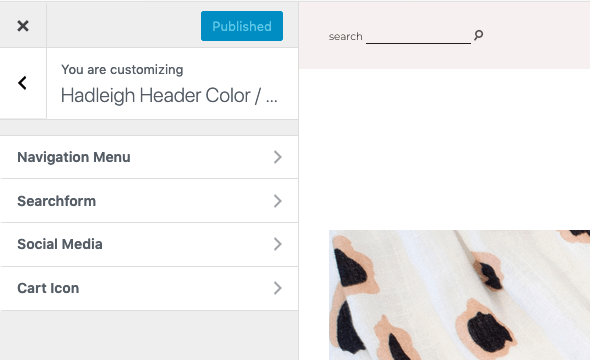
Header Color / Settings
To customize the header colors, click on the "Hadleigh Header Color / Settings" section in the WordPress Customizer. As shown in the screenshow below, you can adjust the default colors for the navigation menu, header searchform, and header icons.
Hadleigh Colors
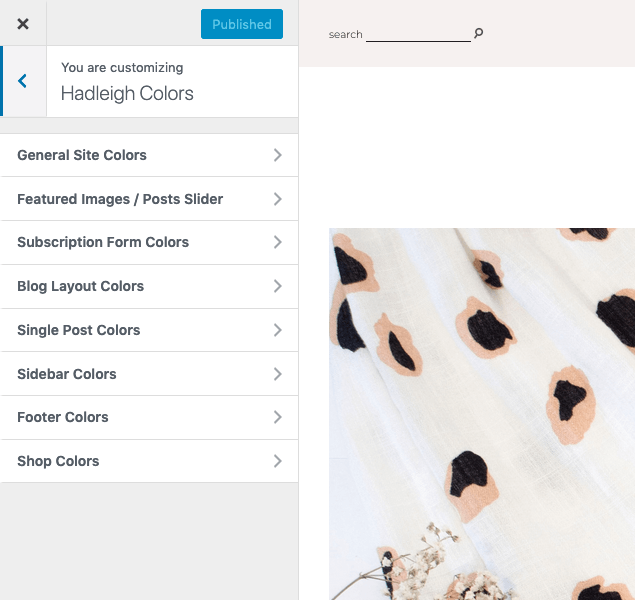
To customize the colors in all other parts of the theme, click on the "Hadleigh Colors" section. You can change theme colors for the following sections:
- General Site Colors, including the body text, headline text, primary link and accent colors
- Featured Image / Posts Slider Colors
- Subscrption Form Colors
- Blog Layout Colors
- Single Post Colors
- Sidebar Colors
- Footer Colors
- Shop Colors
Hadleigh Typography
The script font shown in the theme demo is The Styled Edit font. While it is the recommended script font for this theme, it must be purchased separately. Due to copyright license, premium fonts cannot be redistributed with any WordPress theme.
With the WordPress Customizer, the theme settings allow you to 1) Upload the recommended script font file (the Styled Edit) OR 2) Upload your own font file to use an alternate font instead.
The Hadleigh Typography section of the Customizer allows you to upload a single font file and customize the accent words and phrases to your style preferences. Please refer to the the Hadleigh Fonts section of the tutorial for more details.
Post Sliders
Create unlimited post sliders for your WordPress site. To begin, navigate to the Appearance > Posts Sliders page. The sliders are made up of your existing posts.
To create a slider, select the Create New Item button at the top of the screen. Enter a name for your slider and select the Add button to create the slider.
As detailed below, you can add posts to a slider in two ways. Additionally, you can customize the colors of the Posts Slider directly in slider settings.
-
Category
Select Category under the Select Slider Type dropdown. In the Select A Category dropdown that appears, select the category of posts to populate your slider. Additionally, select the number of slides to appear in your slider - the slider will show the most recently published posts of the selected category.
Use the Select Color buttons to customize the colors of the inidivdual slider.

-
Enter Post Ids
Select Enter Post Ids under the Select Slider Type dropdown. In the Enter Post IDs textbox that appears, enter the ids of the posts (separated by commas) as shown in the image below.
Use the Select Color buttons to customize the colors of the inidivdual slider.

Upon making any changes, please ensure you press the "Update" button to save all changes. A confirmation message will notify you that the changes were successfully saved.
Add a Posts Slider to a Page: After creating a slider, navigate to Pages > Add New or Edit an existing page to add a slider to any page of your website, including the home page. Follow the instructions in the Pages section above.
Featured Images
The Hadleigh theme includes three types of featured images: Single Image, Double Images, and Triple Images. You can create unlimited featured images for your WordPress site.
Add any Featured Image to a Page: After creating a featured image, navigate to Pages > Add New or Edit an existing page to add a featured image to any page of your website, including the home page. Follow the instructions in the Pages section above.
Triple Images
To begin, navigate to the Appearance > Triple Images page. To create a set of Triple Images, select the Create New Item button at the top of the screen. Enter a name for your set of images and select the Add button to create the set of Triple Images.
As featured in the theme demo, there are two styles (of triple images) included with the theme. Use the Select Feature Style dropdown menu to select your preferred style. Use the Select Color buttons to customize the colors of each page element.
To select the three images, click on "Select Image" to use a photo from your Media Library. For each of the images, you can add a custom link -- ensure you include the full web address of your link, beginning with http://. Additionally, you can choose to open the link in the existing tab or a new window.
Upon making any changes, please ensure you press the "Update" button to save all changes. A confirmation message will notify you that the changes were successfully saved.

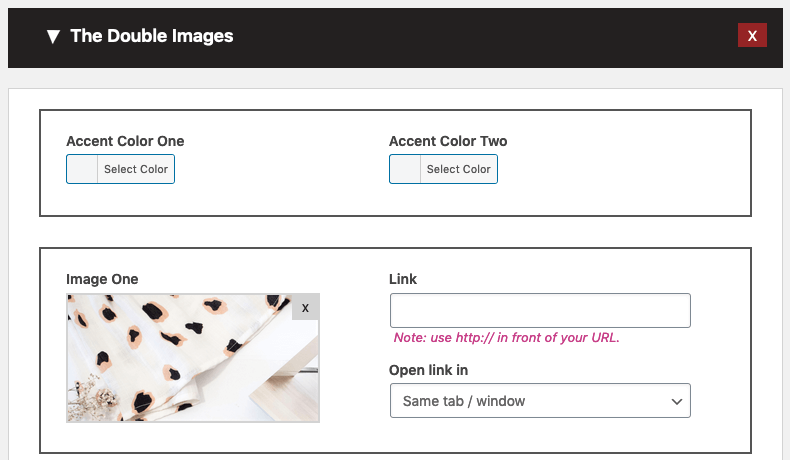
Double Images
To begin, navigate to the Appearance > Double Images page. To create a set of Double Images, select the Create New Item button at the top of the screen. Enter a name for your set of images and select the Add button to create the set of Double Images.
Use the Select Color buttons to customize the colors of each page element.
To select the two images images, click on "Select Image" to use a photo from your Media Library. For each of the images, you can add a custom link -- ensure you include the full web address of your link, beginning with http://. Additionally, you can choose to open the link in the existing tab or a new window.
Upon making any changes, please ensure you press the "Update" button to save all changes. A confirmation message will notify you that the changes were successfully saved.
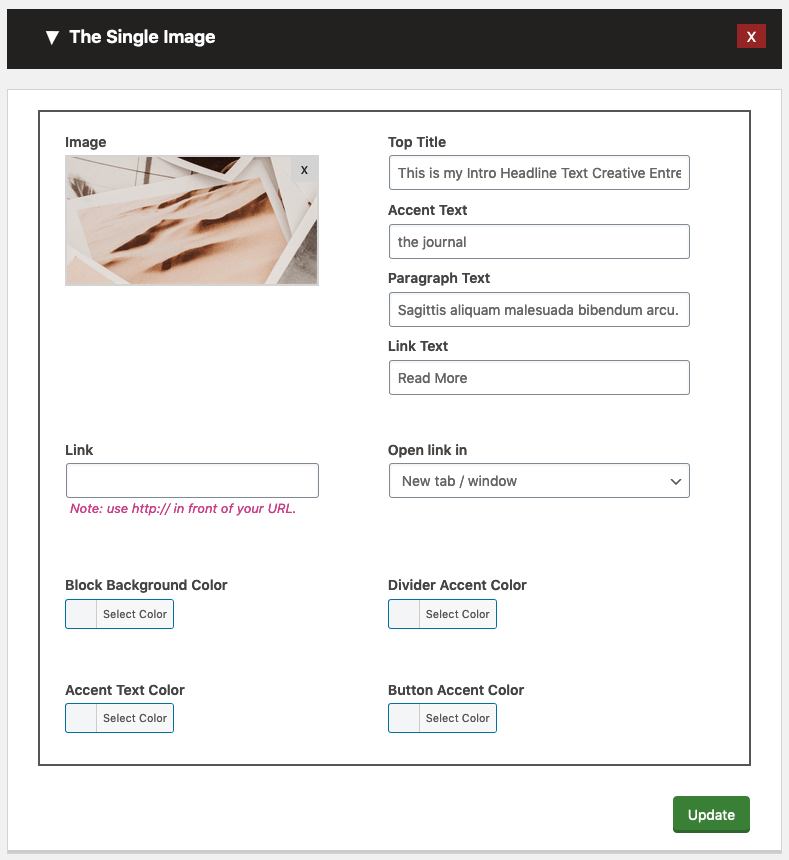
Single Image
To begin, navigate to the Appearance > Single Image page. To create a Single Image, select the Create New Item button at the top of the screen. Enter a name for your image and select the Add button to create the Single Image.
To select the image, click on "Select Image" to use a photo from your Media Library. You can add a top title, accent text, paragarph text, link title, and custom link to the image -- ensure you include the full web address of your link, beginning with http://. Additionally, you can choose to open the link in the existing tab or a new window.
Use the Select Color buttons to customize the colors of each page element.
Photo Sizes: When adding an image to the Single Image feature element, you should use images with at least 1650px width to accommodate the full width of the Single Image.
Upon making any changes, please ensure you press the "Update" button to save all changes. A confirmation message will notify you that the changes were successfully saved.
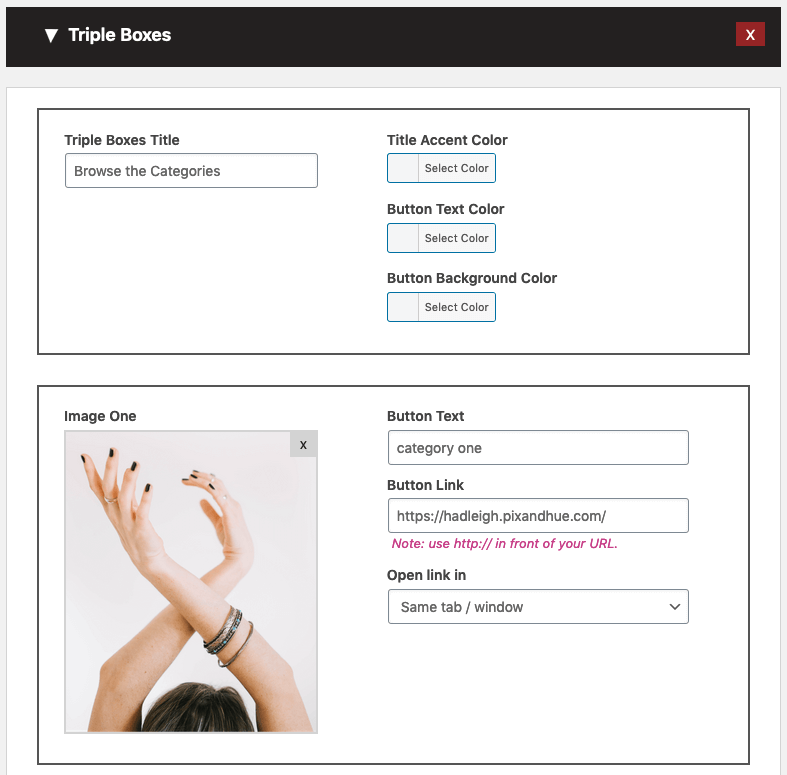
Triple Boxes
The Hadleigh theme includes a styled set of Triple Boxes, which can be added to the top of any page. You can create unlimited sets of Triple Boxes for your WordPress site. To begin, navigate to the Appearance > Triple Boxes page.
To create a set of Triple Boxes, select the Create New Item button at the top of the screen. Enter a name for your set and select the Add button to create the Triple Boxes.
Use the Triple Boxes Title textbox to enter a title that will display above the set of boxes. Use the Select Color buttons to customize the colors of each page element.
To select an image for each box, click on "Select Image" to use a photo from your Media Library. You can add button text and custom link for each image -- ensure you include the full web address of your link, beginning with http://. Additionally, you can choose to open the link in the existing tab or a new window.
Upon making any changes, please ensure you press the "Update" button to save all changes. A confirmation message will notify you that the changes were successfully saved.
Add a set of Triple Boxes to a Page: After creating the boxes, navigate to Pages > Add New or Edit an existing page to add the set to any page of your website, including the home page. Follow the instructions in the Pages section above.
Posts
Post Types and Post Headers
The Hadleigh theme has three single post types:
- Post With Sidebar
- Full-Width Post: Content in the full-width post will be the full width of the theme, and there will be no sidebar display.
- Full-Width Narrow Post: Content in the full-width narrow post will be a fixed, limited width and there will be no sidebar display. This post type allows you to implement the alignwide and alignfull classes of all Gutenberg blocks.
By default, a single post will follow the global settings in the Hadleigh theme Post settings. To change the global settings for all posts on your website, go to Appearance > Hadleigh Options > Post Settings. Use the "Select Post Layout" option to change the layout for all posts on your website.
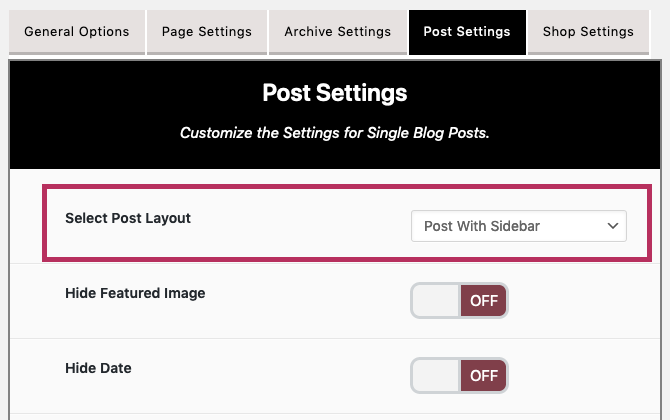
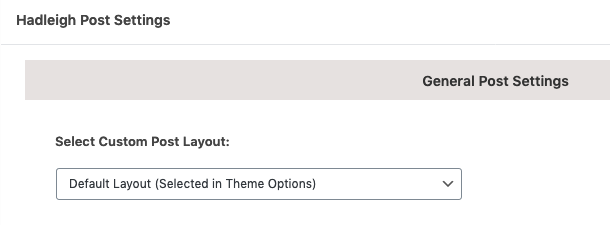
Additionally, you can change the post type of an individual post so that it is different from the global Post settings. To change the post type of a single post, use the Select Custom Post Layout dropdown in the Hadleigh Post Settings below the post text editor.
Post Options
In addition to choosing a custom post layout, use the Hadleigh Post Settings below the Post text editor to choose from the following options:
- Current Location: Add a Current Location label to the post that will be displayed with a post. If preferred, you can attach a link to the current location label for each post.
- Affiliate Links: Add an affiliate link to be featured for this post. You can find additional information in the Affiliate Links section of this tutorial.

Video, Gallery, and Audio Posts
The Hadleigh Theme comes with four different post formats: Standard, Video, Gallery and Music Posts. To use all post formats, please ensure that you have installed and activated the included plugin called Vafpress Post Formats UI. If you have not downloaded the plugin yet, go to Appearance > Install plugins to download and install all plugins recommended for the theme.
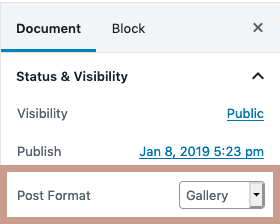
At the bottom of the Edit Post page, use the Post Format Content section to create Gallery, Video, and Audio posts. Click on the tab of your preferred post format, and insert your content.
Next, under the Status & Visibility section on the right of the screen, choose your preferred post format from the Post Format dropdown menu. The images below show an example of a Gallery post.

Customize Blog Posts: You can tailor the look of single blog posts by going to Appearance > Hadleigh Options > Post Settings to show/hide different elements of the post.
Post Featured Images
The Hadleigh Theme uses the WordPress Featured Image function. This way, you can upload one image and WordPress will automatically resize it to all of the various thumbnail sizes used throughout the theme. When adding a featured image to a single post, you should use images with at least 1100px width to accommodate the full width of the theme.
Author Information
To populate the author box that appears on individual posts, navigate to Users > All Users. Select Edit for the desired user.
Under the Contact Info section, use the text fields to enter in the social media accounts of the specific user. Make sure to use the full URL of the social media account, beginning with https://

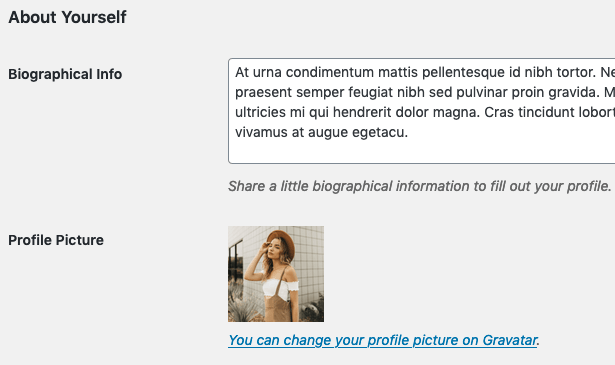
Under the About Yourself section, fill in the Biographical Info text box to provide a description of the author. To upload an author image from your Media Library, you must install a plugin like One User Avatar. Otherwise, the image will default to the profile picture of your WordPress account.
You can change the default colors in the post author box in the WordPress Customizer. Navigate to Appearance > Customize > Hadleigh Colors and use the "Single Post Colors" section to customize all colors in the single post, including the author box.

Child Theme
In the theme package, navigate to the 'hadleigh-theme' folder. Within the 'hadleigh-theme' folder, you will find hadleigh-child.zip -- this is the child theme file to install. Using the steps in the Installation section, install and activate the child theme.
Sources & Credits
Code Sources and Other Files
Photo Credits
Change Log
The Change Log details the changes made to each updated version of the theme.
Version 1.5
Updated March 24, 2022
- Minor bug fixes for Elementor 3.6+ and WordPress 5.9+
- Update theme to support Elementor Global colors for all applicable import files
- Updated guidance for the launch of MailerLite's new platform in March 2022
Version 1.4
Updated May 19, 2021
- Minor Bug fixes, including WordPress 5.7+ and Elementor 3.2+
Version 1.3
Updated February 11, 2021
- Minor Bug fixes, including WordPress 5.6+, Elementor 3.1+, and the MailerLite Form
Version 1.2
Updated November 13, 2020
- Minor bug fixes
- Added separate dropdown for rewardStyle widgets
- New social media icons - Spotify, Email Address
- Theme now compatible with Flodesk, Convertkit and MailerLite email marketing platforms.
Version 1.1
Updated August 27, 2020
- Bug Fix for Vafpress Post Formats UI plugin with WordPress 5.5
- Bug Fix for file upload of TTF font file type
- Bug Fix for Shopstyle widget in Block Layout on Elementor pages
- Added Tiktok to available social media icons
- Updating the theme for compatibility with Elementor 3.0.
Social Media
The Hadleigh theme displays your Social Media account icons in the header and footer of the website. To enter your own social media accounts, go to Appearance > Customizer and click on the "Hadleigh Social Media" tab. Using the textboxes provided, enter the full URL of your social media accounts as shown in the image below.
Header and Footer: To display the social media follow icons in the header and footer of your site, go to Appearance > Hadleigh Options to update the theme options menu.
Use the "Display Social Media in Header" and "Display Social Media in Footer" options to display the icons on your website.